
Save Money With Parental Controls
Discover how parental controls on devices like iPhone, Xbox, and more can help families cut costs and manage spending effectively.
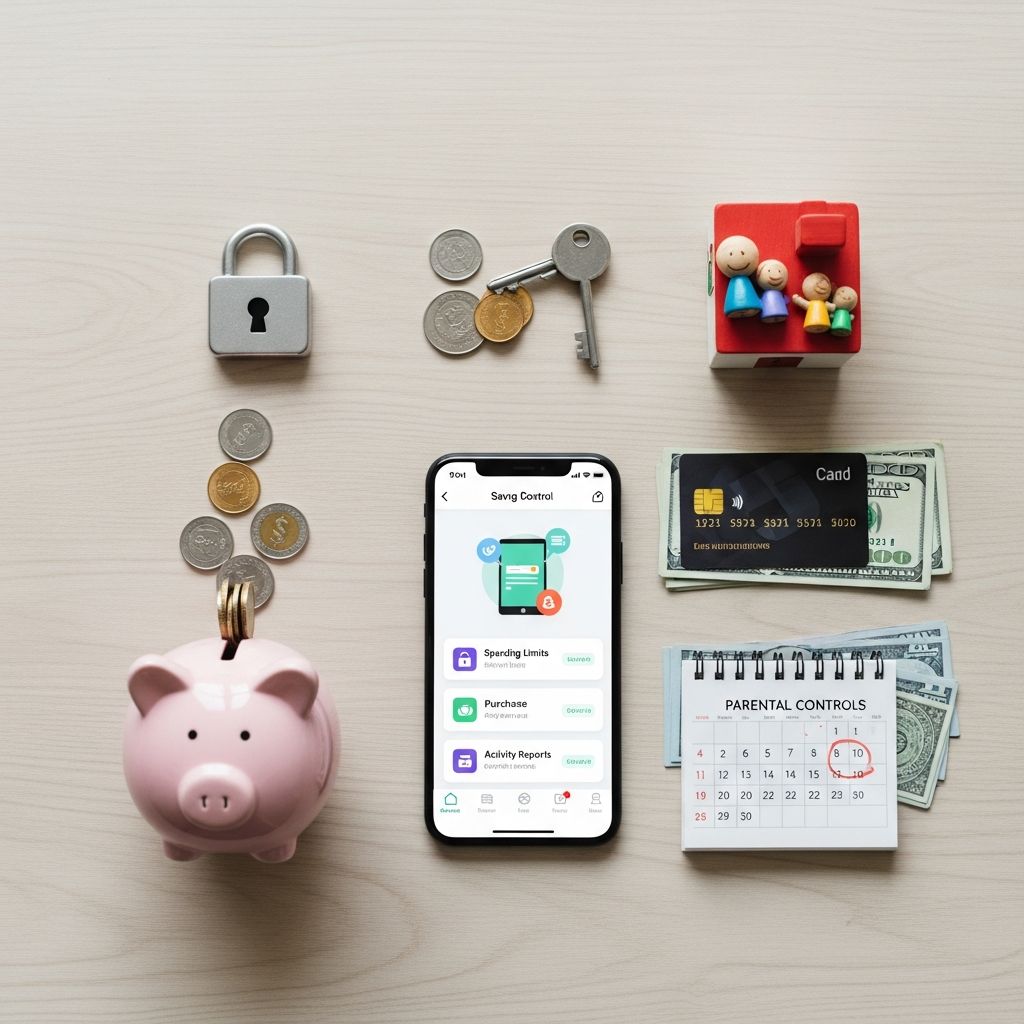
Parental controls aren’t just for safety—they’re powerful money-saving tools. By setting restrictions on smartphones, gaming consoles, streaming services, and routers, families can prevent unauthorized in-app purchases, block impulse buys, limit data overages, and curb unnecessary subscriptions. These features, built into most devices and apps, help stretch your budget without constant oversight.
In today’s digital world, kids’ spending can add up quickly through microtransactions in games, premium app downloads, or forgotten streaming trials. According to a Federal Trade Commission report, in-app purchases led to over $1.5 billion in complaints from parents in recent years, many involving children racking up charges unknowingly. Activating parental controls can eliminate these risks, potentially saving hundreds annually.
Why Parental Controls Save Money
Modern devices tempt kids with one-tap purchases. Without controls, a $0.99 virtual item can snowball into $100 sessions. Controls require approval for every transaction, giving parents veto power. They also cap screen time, reducing exposure to ads and shoppable content.
- Prevent impulse buys: Block in-app purchases on app stores.
- Manage subscriptions: Limit auto-renewals on services like Netflix or Spotify.
- Avoid data fees: Restrict background usage to dodge overage charges.
- Control gaming spends: Lock loot boxes and DLC on consoles.
Beyond direct savings, these tools teach financial responsibility. A Penny Hoarder survey found one-third of adults lacked basic finance lessons from parents, leading to poor habits. Starting early with controls builds mindful spending.
Parental Controls on iPhone and iPad
Apple’s Screen Time offers robust free controls. Enable via Settings > Screen Time > Content & Privacy Restrictions.
- Turn on Content & Privacy Restrictions with a passcode kids can’t guess.
- Under iTunes & App Store Purchases, set Installing Apps, Deleting Apps, and In-app Purchases to Don’t Allow.
- For subscriptions, go to Store Purchases and require password for all buys.
- Set App Limits to cap daily use, preventing marathon sessions that lead to spends.
This setup blocks Fortnite V-Bucks or Roblox Robux without approval. Parents report saving $50–$200 monthly. For family sharing, manage via Family Sharing settings to approve all kids’ downloads centrally.
| Feature | How It Saves Money | Setup Time |
|---|---|---|
| In-App Purchase Block | Stops microtransactions | 2 minutes |
| Password for Purchases | Requires approval | 1 minute |
| App Limits | Reduces ad exposure | 3 minutes |
Android Parental Controls
Google Family Link provides similar protection for Android devices. Download from Play Store and link your child’s account.
- Approve app downloads: Every install pings your phone for OK.
- Block payments: Under Settings > Purchase Approval, require verification.
- Screen time limits: Set daily caps; device locks after.
- Content filters: Restrict mature apps with shops.
For Samsung or other brands, use built-in Digital Wellbeing. A Common Sense Media study shows 78% of kids encounter in-app prompts; controls neutralize them. Savings tip: Enable for all family devices via one parent account.
Xbox Parental Controls
Microsoft’s family settings prevent Xbox game pass add-ons and store buys. Access via account.microsoft.com/family.
- Create a child account if needed.
- Set Spending Limits to zero or require approval.
- Under Apps, Games & Media, block purchases and web browsing.
- Use Screen Time for hourly/daily limits.
This stops $20 skin packs in Minecraft or Call of Duty. Xbox reports parental approvals catch 90% of unwanted spends. Pair with privacy settings to limit multiplayer chats that encourage trades.
PlayStation Parental Controls
Sony’s system mirrors Xbox. From PS5 settings or playstation.com:
- Spending Limits: Set monthly cap at $0.
- App Usage Limits: Lock after time quotas.
- Restrict Store: No buys without PIN.
Fortnite and Roblox dominate PS spends; controls ensure free play only. Parents save an average $120/year per child.
Nintendo Switch Parental Controls
Nintendo’s app links to your phone for real-time monitoring.
- Download Nintendo Switch Parental Controls app.
- Set Play-Time Limits and Purchase Restrictions.
- Block eShop access entirely.
- Monitor play history remotely.
Ideal for Animal Crossing microtransactions. Zero setup cost, full control.
Streaming Services Controls
Subscriptions like Netflix ($15.49/month), Disney+ ($13.99), and YouTube Premium ($13.99) add up. Use profiles:
| Service | Control Method | Savings Potential |
|---|---|---|
| Netflix | Kids profile auto-limits content; no upgrades | $15/month |
| Disney+ | Profile PIN; block add-ons | $14/month |
| YouTube | Restricted Mode; no Premium buys | $14/month |
| Spotify | Kids app; no upgrades | $10/month |
Family plans amplify savings—Netflix allows 5 screens for one price. Cancel unused via controls.
Router-Level Controls
For whole-home savings, use your router’s parental features (e.g., Netgear, TP-Link).
- Time schedules: Block internet 8 PM–7 AM.
- Device pausing: One-click off for spendy gadgets.
- Content filters: Block shopping sites.
Cirrus by Netgear or Eero add apps for $5–10/month but save on data plans. FCC data shows households average $20/month overages without limits.
Additional Money-Saving Tips
Combine controls with habits:
- Review bills weekly for surprise charges.
- Use allowance apps like Greenlight (with controls).
- Teach budgeting—tie allowance to chores.
- Free alternatives: Library apps, ad-free YouTube Kids.
A survey by The Penny Hoarder revealed parents teaching finance early prevent debt cycles.
Frequently Asked Questions (FAQs)
Do parental controls completely stop all purchases?
No, but they require approval or block most. Always use strong passcodes.
Are there costs for these controls?
Most are free built-in; some routers/apps have premiums under $10/month.
Can kids bypass controls?
Tech-savvy ones might, so monitor and update passcodes. Combine with talks.
How much can families save?
$250+/month reported by users via blocked buys and limits.
What about older kids?
Use lighter controls like spend caps to teach responsibility.
References
- Consumer Sentinel Network Data Book — Federal Trade Commission. 2023. https://www.ftc.gov/reports/consumer-sentinel-network-data-book-2023
- Parental controls not infallible in social media — MyJournalCourier (opinion, informed by expert). 2024-10-15. https://www.myjournalcourier.com/opinion/article/parental-controls-not-infallible-social-media-19442414.php
- 10 Money Lessons Every Parent Should Teach Their Kids — The Penny Hoarder. 2024. https://www.thepennyhoarder.com/budgeting/budgeting-for-kids/
- Save Money: Set Parental Controls on iPhone, Xbox & More — The Penny Hoarder. 2024. https://www.thepennyhoarder.com/save-money/parental-controls/
- The Common Sense Census: Media Use by Tweens and Teens — Common Sense Media (.org research). 2022-10-25. https://www.commonsensemedia.org/research/the-common-sense-census-media-use-by-tweens-and-teens-2022
- Family Settings Reference — Microsoft (official docs). 2025-01-01. https://support.xbox.com/help/family-friends/family-settings/microsoft-family-safety-features
- High-Speed Internet Access Complaints — Federal Communications Commission. 2024. https://www.fcc.gov/reports-research/consumer-complaints-data-center
Similar Articles








Read full bio of Sneha Tete