How to Safely Store Important Documents on Your Computer
Protect your sensitive files with encryption, password managers, and best practices for digital document security.
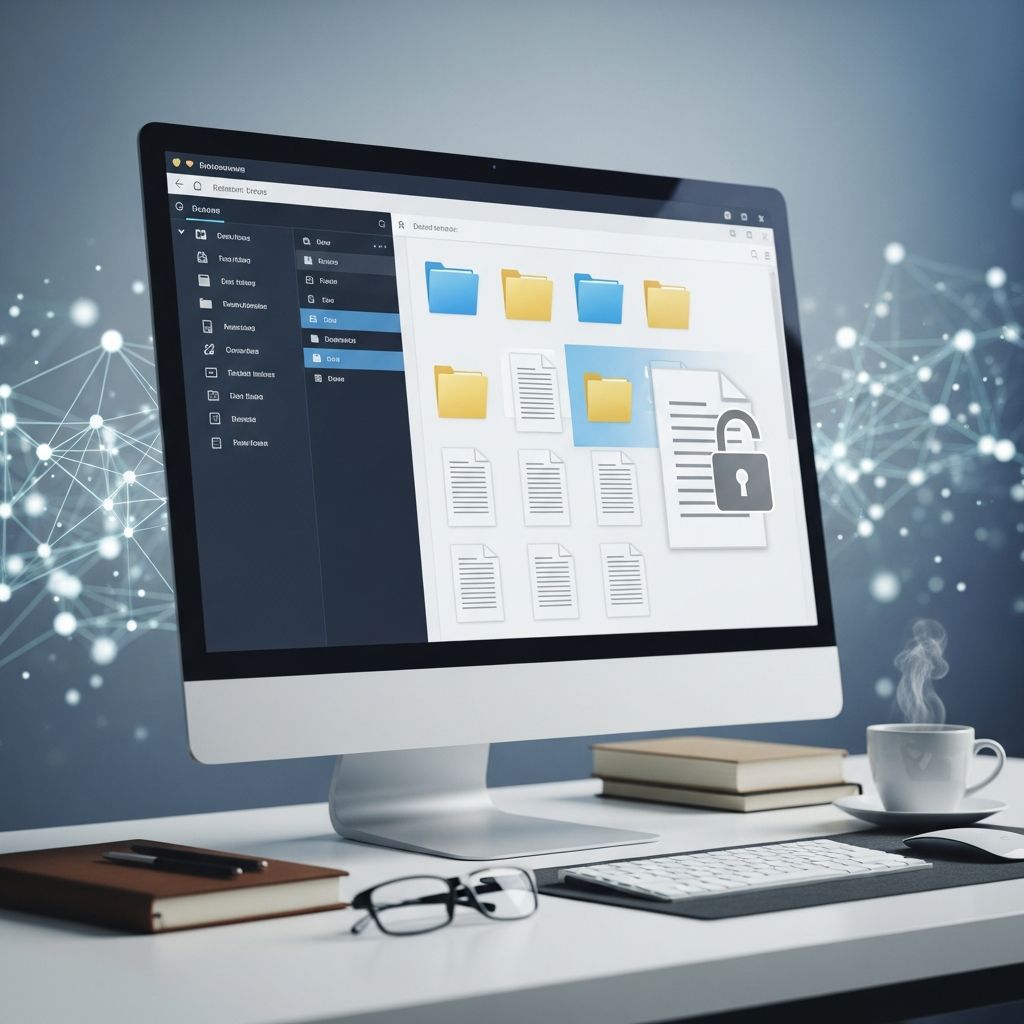
In today’s digital age, most of our important documents exist in electronic form rather than paper. Tax returns, medical records, financial statements, and legal documents are increasingly stored on our computers. However, simply saving these files to your computer’s Documents folder may not provide adequate security for sensitive information. Understanding how to properly secure your digital documents is essential for protecting your privacy and preventing unauthorized access to your personal data.
Why Store Secure Documents Differently?
You might wonder whether storing your tax and medical files in your computer’s standard Documents folder is sufficient. While it may seem safe, the reality is more complex. Your information may not be as secure as you think. Anyone with even basic technical knowledge could potentially gain access to your documents and sensitive information, even if your user account is password-protected. A password on your user account only prevents casual access—it doesn’t protect your files from determined attackers or someone with physical access to your computer.
The key difference is understanding that a user account password and file encryption are two separate security layers. Your user account password controls who can log into your computer, but encryption ensures that even if someone accesses your hard drive directly, they cannot read the files without the proper encryption key. This distinction is crucial for protecting truly sensitive documents.
Securing Your Computer With Encryption
Encryption is one of the most effective ways to protect your digital documents. When you encrypt a drive on your computer, you ensure the contents can only be accessed by someone with the correct password or encryption key. This protection works even in extreme scenarios—if someone physically removes your hard drive from your computer and connects it to another machine, they still cannot access your encrypted files without the proper credentials.
Your computer stores its files on either a traditional hard drive or a modern Solid State Drive (SSD). When you enable drive encryption, you create a protective layer that scrambles the data on these drives. This means your important documents are not just protected by your user account password, but by an additional encryption layer that makes them unreadable to unauthorized users.
Many modern computers can automatically enable drive encryption, but you should verify that this feature is active on your system. The process differs slightly between macOS and Windows operating systems, so follow the instructions specific to your device.
Drive Encryption on macOS
If you use a Mac computer, enabling FileVault encryption is straightforward. FileVault is Apple’s built-in encryption technology that protects all the data on your Mac’s drive. Here’s how to enable it:
- Open the Settings app on your Mac
- Select Security & Privacy from the menu options
- Look for the FileVault tab at the top of the window
- Select Encrypt Entire Drive and choose New Encryption Mode when prompted
- Click Start Encrypting to begin the encryption process
The encryption process may take considerable time depending on how much data you have stored, but you can continue using your computer normally while encryption completes in the background. Your Mac may prompt you to restart during this process, which is normal and necessary for the encryption to complete properly.
Drive Encryption on Windows
Windows computers offer BitLocker, which provides similar encryption protection. The process for enabling BitLocker varies depending on your Windows version, but generally involves accessing your system settings and enabling the encryption feature for your main drive. Windows may automatically enable encryption on newer systems, so check your settings first to confirm whether your drive is already protected.
Using a Password Manager to Secure Documents
Beyond drive encryption, password managers offer an excellent secondary method for storing sensitive documents. Password managers do more than just secure your passwords—they can also store important documents, notes, and other sensitive information in a protected digital vault. This approach provides several advantages: your documents are encrypted, backed up automatically, and accessible from multiple devices with a single master password.
Three popular password managers that support document storage are 1Password, Bitwarden, and LastPass. Each offers a user-friendly interface for uploading and organizing your important files.
Storing Documents in 1Password
1Password makes it simple to add documents to your secure vault:
- Open the 1Password desktop app on your computer
- Click the New Item button
- Choose Document from the menu options
- Select Add Document
- Browse to the file you wish to save and click Save
Once saved, your document is encrypted and stored securely within 1Password’s vault, where it can only be accessed with your master password.
Storing Documents in Bitwarden
Bitwarden takes a slightly different approach by organizing documents alongside related login information:
- Open the Bitwarden desktop app
- Select an existing item where you want to attach your document (for example, you might store tax documents with your tax software login)
- Click the Edit button and choose Attachments
- Select the file you want to save
- Click Save to complete the upload
This organizational method helps you keep related documents and credentials together, making them easier to find when needed.
Storing Documents in LastPass
LastPass stores documents within Secure Notes, which you can create and organize as follows:
- Open your web browser and visit the LastPass website
- Log into your account with your master password
- Create a new Secure Note for your documents
- Upload or attach your files within the Secure Note
- Click Save to secure your documents
LastPass’s web-based interface means you can access your documents from any device with an internet connection, as long as you have your master password.
Keeping Your Computer Up to Date
While encryption and password managers provide excellent protection for your documents, maintaining overall computer security is equally important. Keeping your operating system and software updated ensures you have the latest security patches that protect against newly discovered vulnerabilities. Cybercriminals often exploit outdated software, so regular updates are a critical part of your security strategy.
Additionally, consider running reputable antivirus and anti-malware software to provide an extra layer of protection against threats that could compromise your files. Combine these security measures with the encryption and password manager recommendations above to create a comprehensive security strategy.
Best Practices for Document Storage
Beyond the technical measures discussed above, several best practices can further enhance your document security:
- Use strong, unique passwords: Your master password for your password manager and your encryption key should be complex and unique to that account
- Enable two-factor authentication: When available, enable this feature on your password manager and other sensitive accounts
- Maintain backups: Keep encrypted backups of your important documents in case your computer fails
- Limit access: Only share document access with people who absolutely need it
- Review permissions regularly: Periodically check who has access to your stored documents and remove access for anyone who no longer needs it
Combining Security Methods for Maximum Protection
The most effective security approach combines multiple methods. For example, you might encrypt your entire hard drive with FileVault or BitLocker, then additionally store your most sensitive documents in a password manager like 1Password or Bitwarden. This layered approach means that even if someone bypasses one security measure, your documents remain protected by others.
Think of security like a medieval castle: a single wall provides some protection, but multiple walls, gates, and guards create a much more formidable defense. Similarly, combining encryption, password managers, strong passwords, and regular updates creates a robust security system for your digital documents.
Frequently Asked Questions
Q: Is drive encryption enough to protect my documents?
A: Drive encryption is an excellent foundation for protecting your documents, but combining it with additional security measures like password managers provides even better protection. If someone obtains your computer while it’s powered off, encryption prevents them from accessing your files. However, if your computer is compromised by malware while powered on, additional security layers help protect your most sensitive documents.
Q: What documents should I store in a password manager?
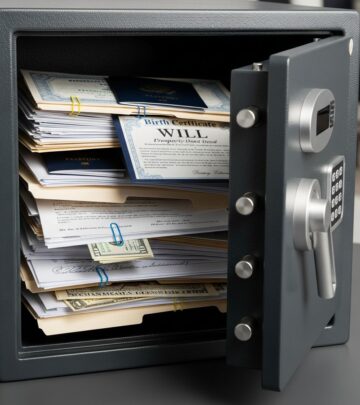
A: You should store highly sensitive documents in a password manager, including financial account information, medical records, insurance documents, legal papers, Social Security numbers, and any other documents you wouldn’t want publicly accessible. Essentially, any document you’d keep in a physical safe is a good candidate for password manager storage.
Q: Can I access my password manager documents from my phone?
A: Yes, most password managers including 1Password, Bitwarden, and LastPass offer mobile apps that allow you to access your stored documents from your smartphone or tablet. You’ll need the same master password to access your vault on mobile devices.
Q: How often should I update my passwords?
A: Security experts generally recommend updating passwords every 3-6 months as a baseline, and immediately if you suspect any unauthorized access or if a service you use reports a security breach. Your master password for your password manager should be particularly strong and updated periodically.
Q: What if I forget my encryption password?
A: If you forget your encryption password or master password for your password manager, recovery can be difficult or impossible. Always store your passwords in a secure location, such as a physical safe, or with a trusted family member. Some password managers offer recovery options if you set them up beforehand, so check your provider’s recovery procedures.
Q: Are password managers safe to use?
A: Reputable password managers like 1Password, Bitwarden, and LastPass use military-grade encryption and employ security experts to regularly audit their systems. They are generally considered safer than reusing passwords or storing passwords in unencrypted files. Choose established password managers with positive security track records.
References
- How to Safely Store Important Documents on Your Computer — The Penny Hoarder. 2024. https://www.thepennyhoarder.com/save-money/store-secure-documents/
- FileVault User Guide — Apple Inc. 2025. https://support.apple.com/en-us/102662
- BitLocker Drive Encryption Overview — Microsoft. 2025. https://learn.microsoft.com/en-us/windows/security/information-protection/bitlocker/bitlocker-overview
- How to Stay Safe Online So That Your Money and Data Are Protected — The Penny Hoarder. 2024. https://www.thepennyhoarder.com/save-money/how-to-stay-safe-online-tips/
- NIST Cybersecurity Framework — National Institute of Standards and Technology. 2024. https://csrc.nist.gov/projects/cybersecurity-framework/
Similar Articles





Read full bio of medha deb