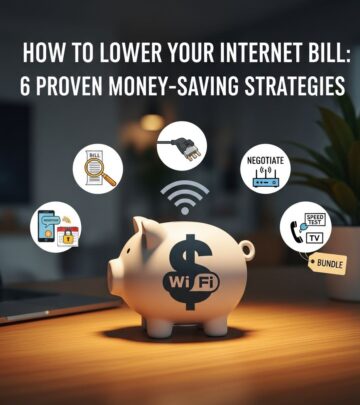
7 Tips to Make Your Internet Faster Without Paying a Penny More
Boost your Wi-Fi speed and bandwidth at home with these free tweaks and simple upgrades—no extra monthly bills required.

Slow internet can frustrate anyone, whether you’re streaming movies, working from home, or browsing social media. While two-thirds of Americans enjoy average top speeds of 119.03 Mbps, many households still battle bandwidth shortages due to outdated equipment, crowded networks, or poor configurations. The good news? You don’t need to upgrade your plan or switch providers to see improvements. This guide covers troubleshooting basics and seven actionable tips to squeeze more speed from your existing setup.
Why Is My Internet So Slow?
Several culprits could be dragging down your connection. Understanding them helps target fixes effectively.
1. It’s Your Internet Service Provider (ISP)
Your ISP delivers a set speed to your home, but factors like peak-hour congestion or data caps can throttle performance. If multiple users stream simultaneously, bandwidth splits, slowing everyone down.
2. It’s Your Wi-Fi Router
An outdated router or one operating on a congested channel bottlenecks your speed. Firmware updates and channel changes often resolve this without hardware swaps.
3. It’s Your Device
Devices hogging resources—think background updates, malware, or too many tabs—consume bandwidth. Older hardware may also struggle with modern speeds.
How to Troubleshoot Your Internet Connection
Before advanced tweaks, run this three-step basics check to rule out simple issues.
Clean Up Your Devices
Start here: Update your OS, scan for malware with antivirus software, delete unused apps/files, and clear browser caches. Free up storage to prevent slowdowns—aim for at least 20% free space on drives.
- Run Windows Update or macOS Software Update.
- Use built-in tools like Malwarebytes (free version) for scans.
- Clear cache in Chrome: Settings > Privacy > Clear browsing data.
Restart Your Modem and Router
Power cycle: Unplug modem and router for 30 seconds, then plug modem back first, wait for lights to stabilize, then router. This refreshes connections and clears temporary glitches.
Test Your Speed
Use free tools like Ookla Speedtest or Fast.com. Run tests wired (Ethernet) and wireless at different times/locations. Compare to your ISP plan’s promised speeds—if consistently 20-30% lower, contact support.
7 Tips to Make the Most of Your Internet Speed
These strategies optimize your current broadband without added costs. Implement one at a time for measurable gains.
1. Change the Channel on Your Wi-Fi
Wi-Fi channels are like radio frequencies; crowded ones cause interference from neighbors. Switch to less busy ones (e.g., 1, 6, 11 for 2.4GHz; 36, 40 for 5GHz).
How to do it:
- Log into router (usually 192.168.1.1; check manual for credentials).
- Go to Wireless Settings > Channel selection.
- Use Wi-Fi Analyzer apps (Android) or Acrylic Wi-Fi (Windows) to scan and pick optimal channels.
Result: Up to 50% speed boost in dense areas.
2. Reconfigure Your QoS
Quality of Service (QoS) prioritizes traffic—e.g., video calls over downloads. Most routers have built-in QoS.
Steps:
- Access router admin panel.
- Enable QoS under Advanced > Traffic Management.
- Prioritize devices/apps: Assign high priority to work laptop, low to smart TV.
Example: During a Zoom meeting, QoS ensures smooth video while limiting Netflix in background.
3. Get a Better Router
Your ISP-provided router is often basic. Upgrade to a dual-band (2.4GHz for range, 5GHz for speed) model supporting Wi-Fi 6 for future-proofing. Budget options under $100 handle 500Mbps+.
| Feature | Basic ISP Router | Dual-Band Upgrade |
|---|---|---|
| Speed Support | Up to 100Mbps | 1Gbps+ |
| Bands | Single | Dual/Tri |
| Devices | 10-15 | 50+ |
Pro tip: Enable MU-MIMO for multiple devices.
4. Try a Wi-Fi Extender
Extenders repeat signals to cover dead zones but halve speed. Place midway between router and weak area. Mesh systems are better but costlier.
- Best for: Large homes (>2000 sq ft).
- Alternative: Powerline adapters use electrical wiring.
5. Reduce Devices on Your Network
IoT boom means 20+ devices per home fighting for bandwidth. Audit via router’s device list.
Actions:
- Disconnect unused: Smart fridge, guest devices.
- Set guest network for visitors/IoT.
- Enable MAC filtering for approved devices only.
Average home: Cutting 5-10 idle devices frees 20-30% bandwidth.
6. Use a Wired Connection
Ethernet delivers full speed without interference—ideal for gaming/streaming. Modern Cat6 cables support 1Gbps+.
- Plug directly into router’s LAN port.
- Use switches for multiple wired devices.
Speed gain: 2-5x over Wi-Fi in same conditions.
7. Upgrade Your Internet Plan or Switch Providers
If tweaks fail, compare plans. Sites like BroadbandNow show local options. Negotiate with ISP using competitor quotes for discounts. Consider fiber if available—up to 2Gbps symmetric.
Frequently Asked Questions (FAQ) About Increasing Your Network Bandwidth
Q: Does a VPN make my internet faster?
A: VPNs mask activity to bypass ISP throttling, potentially boosting speed if throttled (e.g., streaming). Otherwise, they add slight overhead—test with/without.
Q: Can I have two ISPs at once?
A: Yes, run dual networks (e.g., cable + satellite) for redundancy/load balancing. Costly, but useful for heavy use. Routers like dual-WAN support this.
Q: Why does speed drop at night?
A: Peak congestion—ISPs oversell bandwidth. Off-peak tests are faster. QoS and wired help mitigate.
Q: Is Wi-Fi 6 worth it in 2026?
A: Yes, for multi-device homes; handles 4x traffic of Wi-Fi 5 with better efficiency.
Q: How often should I restart my router?
A: Weekly, or use auto-reboot schedules in settings to prevent memory leaks.
Advanced Tips for Power Users
Firmware Updates: Check router manufacturer’s site monthly—updates fix bugs, improve speed 10-20%.
Disable Unused Features: Turn off WPS, UPnP if unused; reduces vulnerabilities/slowdowns.
Placement Matters: Central, elevated router position; avoid microwaves/cordless phones.
Monitor Usage: Apps like GlassWire track per-device bandwidth hogs.
Implementing these can transform laggy Wi-Fi into reliable high-speed access. Test after each change to quantify improvements.
References
- Federal Communications Commission Broadband Data — FCC. 2024-12-01. https://www.fcc.gov/reports-research/reports/broadband-progress-reports
- Wi-Fi Alliance Technical Standards — Wi-Fi Alliance. 2025-06-15. https://www.wi-fi.org/discover-wi-fi/wi-fi-certified-6
- Quality of Service in Home Networks — IEEE Standards Association. 2023-11-20. https://standards.ieee.org/ieee/802.11/7260/
- Internet Speed Test Methodology — Ookla Research. 2025-09-10. https://www.ookla.com/research/methodology/
- Router Security and Optimization Guide — NIST Cybersecurity Framework. 2024-03-05. https://nvlpubs.nist.gov/nistpubs/SpecialPublications/NIST.SP.800-53r5.pdf
Similar Articles








Read full bio of Sneha Tete