How To Make A Budget In Google Sheets: Step-By-Step Guide
Master your finances with our step-by-step guide to creating a customizable budget in Google Sheets using free templates or from scratch.
Creating a budget in Google Sheets is a free, flexible way to gain control over your finances. Whether you use pre-built templates or design one from scratch, Google Sheets offers powerful tools like formulas, charts, and real-time updates to track income, expenses, and savings goals effectively. This guide walks you through every step, from accessing templates to advanced customizations, helping you build a system tailored to your needs.
Take Advantage of Google Sheets’ Free Templates
Google Sheets provides ready-to-use budget templates that eliminate the blank-page intimidation many face when starting a budget. These templates come pre-loaded with formulas, categories, and summaries, saving hours of setup time.
To access them, open Google Sheets and click ‘Blank’ or ‘Template gallery’ at the top. Scroll to find the Monthly Budget template, which features two tabs: ‘Summary’ and ‘Transactions’. The Summary tab displays key metrics like starting balance, ending balance, savings, and variances between planned and actual income/expenses. The Transactions tab lets you log dates, amounts, descriptions, and categories via drop-down menus, automatically updating the summary.
- Customize categories: Edit drop-downs to match your life, such as adding ‘Pet Care’ or ‘Subscription Services’.
- Annual Budget Template: Another option with four sheets—instructions, expenses, income, and summary—for year-long tracking. Enter monthly data, and formulas propagate totals automatically.
Templates are ideal for beginners, as they provide structure while allowing personalization. Financial expert Collins recommends them for those overwhelmed by starting from zero. For more options, explore community templates like those from Tiller, which include advanced features such as color-coding and progress trackers.
Create Your Budget from Scratch
If templates don’t fit, building from scratch offers full control. Start by planning what to track: income sources, expense categories (fixed like rent, variable like groceries), limits, and summaries.
Begin with a new spreadsheet. Use multiple tabs for organization: one for monthly overview, one for transactions, and optional ones for income/expenses. Essential columns include:
| Column | Purpose |
|---|---|
| Date | Record when the transaction occurred |
| Amount | Enter income (positive) or expense (negative) |
| Description | Note details like ‘Grocery run at Walmart’ |
| Category | Use drop-downs: Rent, Utilities, Dining Out, Savings |
| Budgeted | Planned amount per category |
| Actual | Real spending/income |
| Difference | Formula: =Budgeted – Actual |
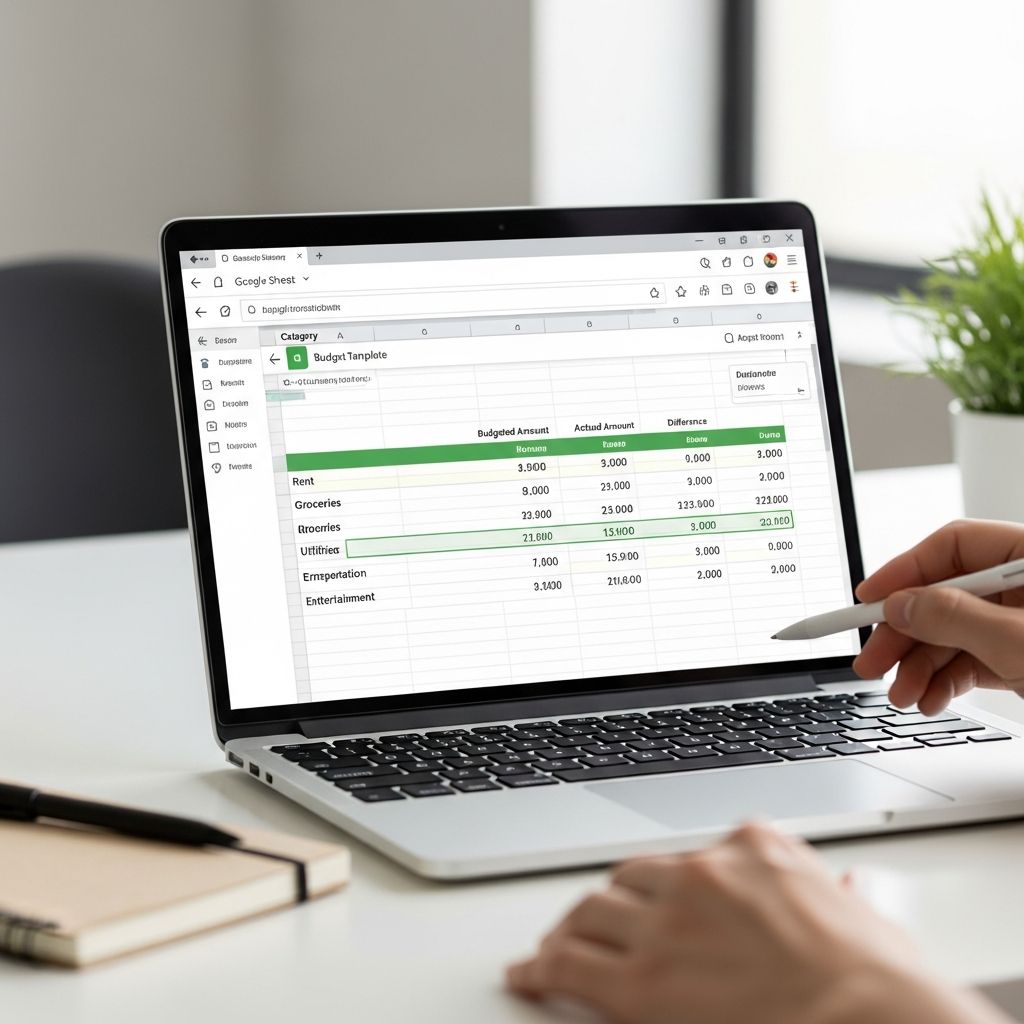
For a basic setup, create a ‘Budget’ tab with categories in column A, budgeted amounts in B, actuals in C, and differences in D. Add totals at the bottom using formulas. Color-code rows: green for income, red for overspending, to visualize at a glance.
Draw inspiration from templates even when customizing—review structures before building. Historical data from bank statements helps set realistic budgeted amounts.
Basic Google Sheets Functions for Budgeting
Formulas automate calculations, making your budget dynamic. Master these essentials:
- SUM: Totals ranges, e.g.,
=SUM(B2:B10)for expense totals. Drag to copy across months. - AVERAGE: Baselines variable spending, e.g.,
=AVERAGE(C2:C13)for average groceries. - Difference:
=B2-C2(budget minus actual); positive means under budget. - SUMIF: Category-specific sums, e.g.,
=SUMIF(D:D,"Groceries",E:E)to total grocery spends from transactions.
Link tabs: In summary, pull from transactions with =SUMIF(Transactions!D:D, A2, Transactions!B:B). Add conditional formatting: Format cells red if actual > budgeted (Data > Conditional formatting).
Setting Up Income and Expense Categories
Categorize comprehensively for insights. Common income: Salary, Freelance, Investments. Expenses: Fixed (Rent, Insurance), Variable (Food, Entertainment), Debt, Savings.
Create a drop-down list: Select category column > Data > Data validation > List of items (e.g., ‘Rent,Utilities,Groceries’). Plan budgets based on past averages, allocating 50% needs, 30% wants, 20% savings/debt (50/30/20 rule, adaptable).
Separate tabs for income and expenses if detailed tracking is needed, summarizing on a dashboard with charts.
Track Transactions and Update Regularly
Log every transaction promptly in the Transactions tab. Set Google Calendar reminders for weekly updates. Review variances monthly: Overspent on dining? Adjust next budget.
Pro tip: Import bank CSVs via File > Import for bulk entry, then categorize.
Add Visuals: Charts and Conditional Formatting
Enhance with charts: Select data > Insert > Chart (pie for category breakdown, line for monthly trends). Conditional formatting highlights issues: green for savings goals met, yellow for close, red for over.
Advanced Tips for Power Users
Script custom functions or use Apps Script for auto-emails on overspending. Integrate with Google Forms for mobile transaction entry. For annual views, use pivot tables (Data > Pivot table) to analyze trends. Share with family via link permissions for collaborative budgeting.
Test budgets for a month, refine categories. Tools like Tiller auto-pull bank data (subscription-based).
Frequently Asked Questions (FAQs)
Q: Do I need to pay for Google Sheets budgeting?
A: No, Google Sheets is free with a Google account. Templates and core functions require no extras.
Q: How do I make my budget mobile-friendly?
A: Use the Google Sheets app; enable offline mode. Charts and formulas sync across devices.
Q: What if I overspend in one category?
A: Transfer from underspent areas or savings. Review weekly to course-correct.
Q: Can I track multiple months in one sheet?
A: Yes, add columns per month or duplicate tabs. Use SUMIF for yearly totals.
Q: How to set savings goals?
A: Add a ‘Savings’ category with targets; use progress bars via REPT formula or charts.
References
- How to Make a Budget In Google Sheets — The Penny Hoarder. 2023. https://www.thepennyhoarder.com/budgeting/how-to-make-a-budget-in-google-sheets/
- How to create a Budget Tracker in Google Sheets | Step-by-Step — YouTube (Jeremy’s Tutorials). 2025-12-07. https://www.youtube.com/watch?v=zKbbt6ui2BY
- How To Make A Budget In Google Sheets And Microsoft Excel — Tiller. 2024. https://tiller.com/make-a-budget-in-google-sheets/
Similar Articles








Read full bio of Sneha Tete