How to Include Your LinkedIn URL on Your Resume
Master the art of adding your LinkedIn profile to your resume with professional formatting and best practices.
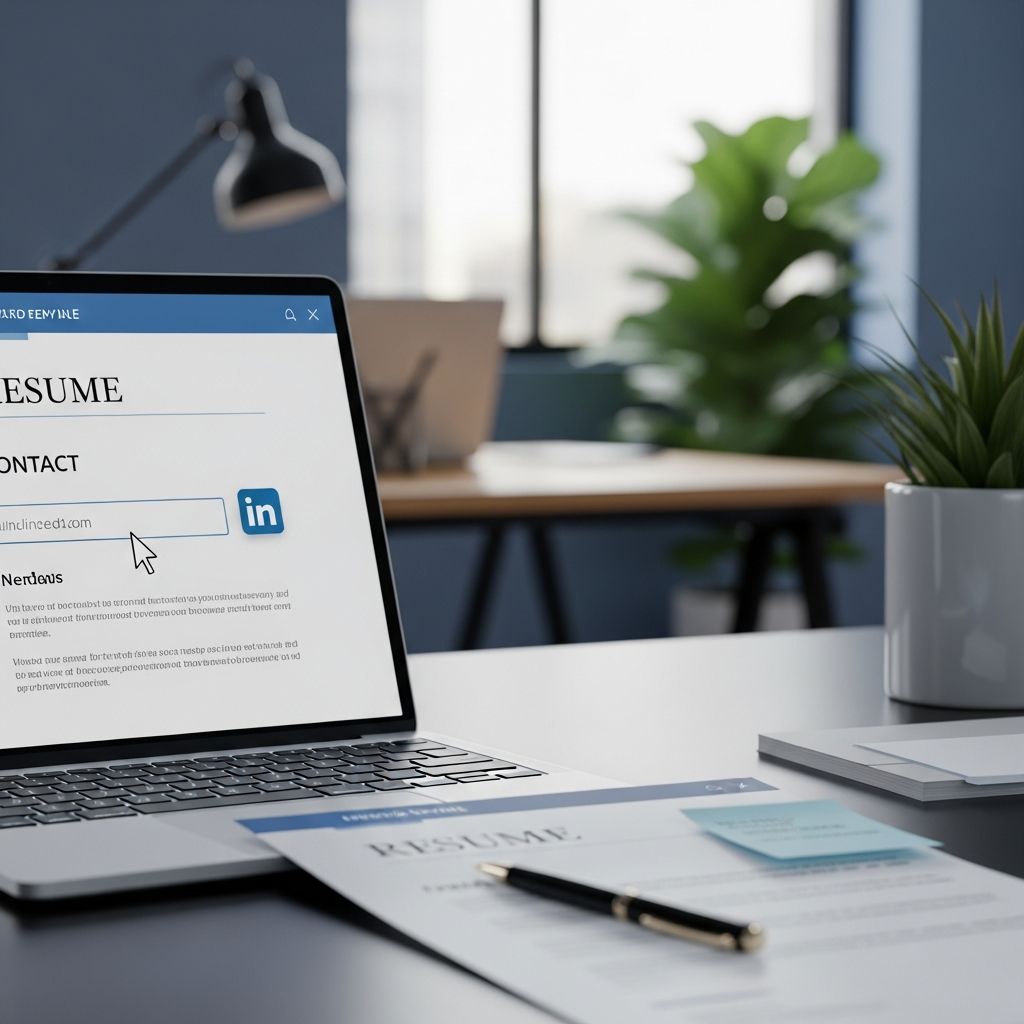
In today’s competitive job market, including your LinkedIn URL on your resume is not just an option—it’s an essential component of your professional presentation. Studies show that including a LinkedIn link on your resume can raise your chances of getting an interview by 71%, making it a small addition with significant impact. However, simply adding any LinkedIn URL won’t suffice. The way you customize, format, and present your LinkedIn link can either enhance your professional image or undermine your credibility as a candidate.
This comprehensive guide walks you through every step of properly including your LinkedIn URL on your resume, from customizing your profile link to strategically placing it where hiring managers will see it first.
Why Your LinkedIn URL Matters on Your Resume
Your LinkedIn profile serves as a digital extension of your resume, providing hiring managers with a deeper understanding of your professional background, skills, endorsements, and recommendations. By including a clickable LinkedIn URL on your resume, you’re offering recruiters immediate access to this valuable information without requiring them to search for you manually.
Beyond convenience, including your LinkedIn URL demonstrates that you’re digitally savvy and serious about your job search. It shows you understand modern recruitment practices and are willing to make the hiring manager’s job easier by providing direct access to your professional information. This small gesture can set you apart from candidates who don’t include this information.
Step 1: Customize Your LinkedIn URL
Before you add your LinkedIn URL anywhere, you must customize it. The default LinkedIn URL is cluttered with random numbers and characters that look unprofessional and take up valuable space on your resume.
Understanding Default vs. Customized URLs
Default URL example: linkedin.com/in/carry-groove-521a7699744/
Customized URL example: linkedin.com/in/carrygroove
Not only does the customized URL look more professional, it’s also easier to recall. Plus, not customizing your URL can make you appear lazy or indifferent about your job application. A clean, custom URL reinforces your personal brand and shows you know your way around the platform.
How to Customize Your LinkedIn URL
Customizing your LinkedIn URL takes less than a minute and is one of the simplest yet most effective tweaks you can make to your professional presentation. Follow these steps:
Step-by-Step Instructions:
1. Log into your LinkedIn profile and navigate to your profile page
2. Click on the “Me” icon in the upper middle to right side of the LinkedIn navigation bar
3. From the menu that appears, select “View Profile”
4. In the top right corner, click on “Edit public profile & URL”
5. Look for the “Edit your custom URL” section on the right side of the page
6. Click the pencil icon next to your current URL
7. Customize the last part of the URL with your preferred name or professional identifier
8. Click “Save” to confirm your changes
Your customized LinkedIn URL should ideally include your first and last name or a variation that’s professional and easy to remember. Avoid using numbers, special characters, or industry jargon unless it’s part of your professional brand.
Step 2: Prepare Your LinkedIn Profile for Resume Review
Before adding your LinkedIn URL to your resume, take time to ensure your profile aligns with your resume and presents you professionally.
Create a Compelling Headline
Your LinkedIn headline is the first thing recruiters see when they visit your profile. Instead of just listing your job title, create a descriptive headline that showcases your value. For example, “Senior Project Manager | PMP Certified | Driving Digital Transformation in SaaS” tells recruiters who you are, what you do, and the value you bring in just a few words.
Write an Engaging About Section
Your LinkedIn “About” section is your chance to write a concise, keyword-rich narrative about your career journey. It should align perfectly with the story your resume tells but with more personality and context. Use this space to expand on your professional achievements and career goals.
Ensure Profile and Resume Consistency
One common mistake candidates make is providing inconsistent information across their resume and LinkedIn profile. Before finalizing your resume with your LinkedIn URL, verify that these details match exactly:
Employment Dates: Make sure the start and end dates for every job are identical on both documents. Your resume can’t say “2020-2023” while your LinkedIn says “2020-2022.”
Job Titles: Use the exact same titles. “Marketing Lead” on your resume and “Marketing Manager” on LinkedIn looks messy and raises questions about your attention to detail.
Company Names: Double-check that all company names are spelled and formatted the same way across the board.
Step 3: Format Your LinkedIn URL for Your Resume
Once your LinkedIn URL is customized and your profile is polished, it’s time to format it properly for inclusion on your resume.
Simplify the URL Format
When adding your LinkedIn URL to your resume, don’t include unnecessary elements. Here’s how to format it correctly:
Do include: linkedin.com/in/yourname
Don’t include: https://, www., or trailing slashes
You don’t need to include the “https://” at the beginning. Only listing the rest of the URL is sufficient. For example, use “linkedin.com/in/karenjohnson22” instead of the full URL with protocol.
You also don’t need to include a LinkedIn label for the URL—the employer will know what the URL is referencing since all LinkedIn URLs begin with “linkedin.com/in/”.
Creating Hyperlinks in Digital Resumes
For electronic versions of your resume (PDF or Word documents), hyperlink the URL so recruiters can click directly to your profile.
How to hyperlink your LinkedIn URL:
1. Copy your customized LinkedIn URL (e.g., linkedin.com/in/yourname)
2. In your resume document, highlight the URL text
3. Right-click and select “Insert Link” or click the link icon in your text editor toolbar
4. Paste your full LinkedIn URL into the hyperlink field
5. Click “Apply” or press Enter to create the hyperlink
6. Test the link to ensure it works correctly
Important: Do not hyperlink the words “LinkedIn” or other descriptive text—hyperlink only the full URL itself. Not everyone can click through hyperlinks on their work computer or in their applicant tracking system (ATS). You want to make it easy for people to copy and paste your URL into their browser as well.
Formatting for Printed Resumes
On the rare occasion that you might print a hard copy of your resume for a career fair or in-person interview, format your LinkedIn URL for readability in print. Remove the hyperlink and ensure the URL is easily legible. The simplified format “linkedin.com/in/yourname-specialty” looks much neater on paper and is far easier for someone to type if they have to do it manually.
Step 4: Position Your LinkedIn URL Strategically
Where you place your LinkedIn URL on your resume is just as important as how you format it.
Primary Location: Your Contact Header
The most common and recommended place to put a LinkedIn URL on a resume is in the header with your contact information. This is your resume’s prime real estate—the very first place a hiring manager looks to figure out who you are and how to get in touch. Placing your profile link alongside your name, phone number, and email makes it impossible to miss and incredibly easy to access.
Your contact information typically appears in this order:
1. Your full name
2. Phone number
3. Email address
4. LinkedIn URL
5. Location (city and state, if relevant)
Sample Contact Header Format
Mary Smith
marysmith@email.com | 555.555.5555 | linkedin.com/in/marysmith11
Alternatively, you can present your contact information horizontally or vertically, depending on your resume design. The key is that your LinkedIn URL is visible at a glance without requiring the hiring manager to scroll.
Alternative Placement Options
While your contact header is the primary location, you have other options:
Resume Footer: Some candidates place their LinkedIn URL in the footer of their resume, which is also appropriate and keeps the header clean.
Portfolio Section: If you have a dedicated portfolio section that includes links to other professional work or projects, you can add your LinkedIn URL there.
Email Signature: When sending your resume by email, include your hyperlinked LinkedIn URL in your email signature. This offers easy access to your LinkedIn profile before the recruiter or hiring manager even looks at your resume.
Cover Letter: It’s also a good idea to include your LinkedIn URL in the contact information section of your cover letter.
Best Practices for LinkedIn URLs on Your Resume
Beyond the basics of customization and placement, follow these best practices to maximize the impact of your LinkedIn URL:
Make Clickable Links Easy to Access
The easier you make it for people to recruit you, the better. Ensure your hyperlinks actually work by testing them before sending your resume. Keep the full URL visible and typed out—don’t hide it behind generic text like “Click Here.”
Maintain Consistency Across Applications
Use the same customized LinkedIn URL across all your job applications, cover letters, and professional documents. Consistency reinforces your professional brand and makes it easier for hiring managers to find and remember your profile.
Keep Your Profile Current
Before sharing your LinkedIn URL, ensure your profile is current and professional. Update your experience, skills, and endorsements regularly. Remove any outdated information or unprofessional content that might undermine your candidacy.
Use Descriptive Text Options
You have flexibility in how you label your LinkedIn URL. Choose one of these approaches:
Clean and Direct: Use descriptive text like “LinkedIn Profile”
Branded and Modern: Use your custom URL itself, like “linkedin.com/in/yourname-specialty”
Either approach works beautifully—the most important thing is that the link is active and clickable.
Common Mistakes to Avoid
When including your LinkedIn URL on your resume, avoid these common pitfalls:
Using Your Default URL: The cluttered, number-filled default URL looks unprofessional. Always customize it first.
Including Unnecessary URL Elements: Don’t include “https://” or “www.” These aren’t necessary and waste valuable space.
Forgetting to Hyperlink: In digital resumes, always hyperlink your URL so recruiters can access it with one click.
Inconsistent Profile Information: Ensure your LinkedIn profile matches your resume exactly in terms of employment dates, job titles, and company names.
Neglecting Profile Quality: Before sharing your LinkedIn URL, make sure your profile is polished, complete, and professional.
Not Testing Your Links: Always test your hyperlinks before submitting your resume to ensure they work properly.
Frequently Asked Questions
Q: Should I include my LinkedIn URL on every resume I submit?
A: Yes, you should include your LinkedIn URL on virtually every resume you submit. It provides hiring managers with quick access to more comprehensive information about your professional background and increases your chances of interview consideration by up to 71%. The only exception might be if you’re applying through a specialized platform that specifically requests you don’t include external links.
Q: What if I don’t have a customized LinkedIn URL yet?
A: Customize your LinkedIn URL before adding it to your resume. The process takes less than a minute and significantly improves the professionalism of your resume. Follow the step-by-step instructions provided earlier in this guide to customize your URL immediately.
Q: Can I use a different format for my LinkedIn URL on my resume?
A: You can use either “linkedin.com/in/yourname” or a more customized version that includes your specialty, like “linkedin.com/in/yourname-specialty.” The key is to keep it clean, professional, and easy to read. Avoid adding extra characters or numbers.
Q: Should I hyperlink my LinkedIn URL on a printed resume?
A: No. When printing a hard copy of your resume, remove the hyperlink and simply display the URL text. The URL should be formatted cleanly so that if someone needs to manually type it into their browser, they can do so easily.
Q: What if my LinkedIn URL is different from my name?
A: Your LinkedIn URL should ideally reflect your name or a professional variation of it. If you’ve customized your URL differently, consider updating it to something that clearly identifies you professionally. This ensures consistency and helps recruiters immediately associate the URL with your professional identity.
Q: Is it better to use descriptive text or the actual URL as a link?
A: Either approach works—use descriptive text like “LinkedIn Profile” or display the URL itself. What matters most is that the hyperlink functions properly and takes recruiters directly to your profile. Choose whichever format aligns better with your resume design.
Q: Should my LinkedIn URL be in the same line as my phone and email?
A: Yes, the standard format is to include your LinkedIn URL in your contact header alongside your phone number and email address. This keeps your contact information organized and ensures the hiring manager sees it immediately.
References
- How to Put LinkedIn on a Resume (with Examples) — TopResume. Accessed November 2025. https://topresume.com/career-advice/how-to-put-linkedin-on-a-resume
- How to Put Your LinkedIn URL on a Resume (and Do It Right) — Final Draft Resumes. Accessed November 2025. https://www.finaldraftresumes.com/post/linkedin-url-on-resume
- How To Add LinkedIn to Your Resume (Examples & Tips) — My Perfect Resume. Accessed November 2025. https://www.myperfectresume.com/career-center/resumes/how-to/add-linkedin
- How to Put LinkedIn on Resume — Optim Careers. Accessed November 2025. https://optimcareers.com/expert-articles/how-to-put-linkedin-on-resume
Similar Articles







Read full bio of medha deb