
How To Get Netflix And Hulu To Play On Your TV: 3 Quick Ways
Stream Netflix and Hulu effortlessly on your TV with smart TVs, streaming devices, and easy setup guides for seamless entertainment.
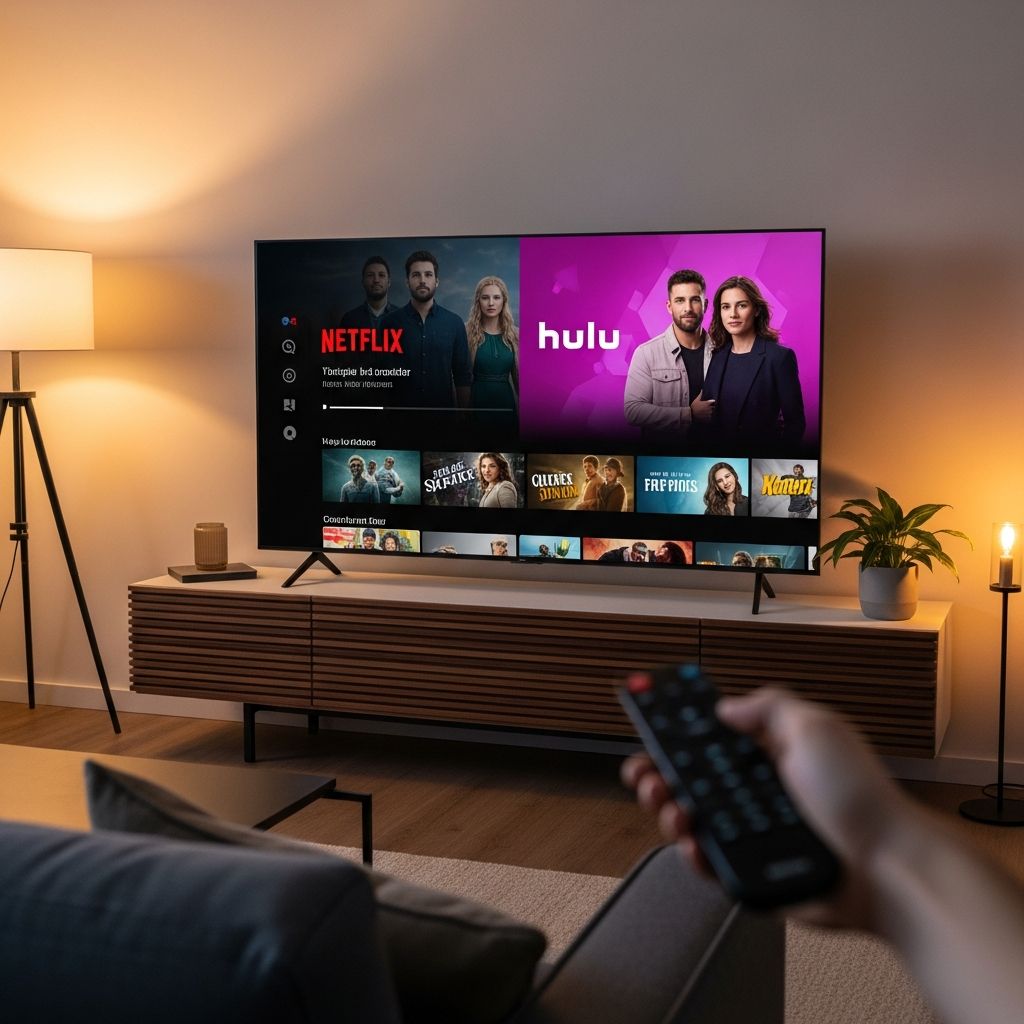
How to Get Netflix and Hulu to Play on Your TV
Streaming services like Netflix and Hulu have transformed home entertainment, allowing you to watch movies, TV shows, and live content directly on your television. Whether you own a smart TV or need a streaming device, setting up these apps is straightforward with the right steps. This guide covers all methods, from basic installations to advanced activation techniques, ensuring you bypass common frustrations like slow on-screen keyboards.
Determine If You Have a Smart TV
The first step is checking if your TV supports streaming apps natively. A
smart TV
connects to the internet via Wi-Fi and runs app stores for Netflix, Hulu, and more. Look for dedicated buttons on your remote for apps like Netflix or YouTube. Alternatively, navigate to the settings menu; options for Wi-Fi networks or an apps section confirm it’s smart.If your TV lacks these features, it’s a standard model. No worries—streaming devices bridge the gap affordably, typically costing $40 or more, plugging into your TV’s HDMI port for instant smart capabilities.
Get a Streaming Device If Needed
For non-smart TVs, popular
streaming devices
include Roku, Apple TV, Amazon Fire TV Stick, Google Chromecast, and gaming consoles like Xbox or PlayStation. These compact gadgets turn any TV into a streaming hub supporting Netflix, Hulu, Disney+, and others.- Roku: User-friendly interface with a Channel Store for apps; excellent for beginners.
- Apple TV: Seamless integration with iOS devices; supports 4K and AirPlay.
- Fire TV Stick: Affordable Amazon option with Alexa voice control.
- Chromecast: Casts from phones; Google TV version has native apps.
- Xbox/PlayStation: Dual-purpose for gaming and streaming if you own one.
Connect the device to your TV’s HDMI port and power outlet, then switch inputs. Most auto-detect and guide setup.
Connect to the Internet
Streaming requires a stable
internet connection
. Use Wi-Fi setup during initial TV or device configuration. Enter your network name (SSID) and password via remote. For reliability, especially 4K streaming, use Ethernet if available—devices like Fire TV Stick 4K support it to minimize buffering.Recommended speeds: Netflix needs 3 Mbps for SD, 5 Mbps for HD, 15 Mbps for 4K; Hulu similar at 3 Mbps minimum. Test your connection; upgrade if buffering occurs.
Install the Netflix and Hulu Apps
Once online, access the
app store
. On Roku, it’s the Channel Store; Samsung TVs have an Apps section; Google TV uses Google Play Store.- Search for “Netflix” or “Hulu”.
- Select and install/download—the process mirrors phone apps.
- Apps often appear on the home screen post-install.
Hulu + Live TV supports devices like Roku, Apple TV, Fire TV, LG/Samsung/VIZIO TVs, Xbox, PlayStation, and more. Netflix is universally available on smart platforms.
Three Ways to Sign In
Opening the app prompts sign-in. Prepare credentials beforehand on a phone or laptop to avoid frustration—exact email and password are essential. Have a second device ready for easier methods.
Method 1: On-Screen Keyboard (Slowest)
The traditional way displays a virtual keyboard on TV. Use remote arrows to select letters, forming your email and password. This is tedious, especially on large screens, and prone to typos. Avoid if possible; it’s the least efficient.
Method 2: Activation Code (Recommended)
Most apps now show an
8-digit activation code
and URL (e.g., netflix.com/tv8 or hulu.com/activate) upon sign-in.- On phone/laptop, visit the URL.
- Log in with credentials—far easier than TV keyboard.
- Enter the code carefully.
- Click activate; TV syncs in seconds.
This method revolutionized setup, saving time and reducing errors.
Method 3: QR Code (Fastest, Newest)
Point your smartphone camera at the TV’s
QR code
. It auto-detects, opening a browser notification.- Tap banner; if logged in on phone, approve with one tap.
- TV logs in instantly—under 10 seconds total.
Ideal for mobile-savvy users; works if apps recognize your phone session.
Select Your User Profile
Post-login, choose profiles for personalized recommendations. Netflix and Hulu support multiple users with kid-safe options. You’re now on the familiar home screen, ready to browse.
Troubleshooting Common Issues
| Issue | Solution |
|---|---|
| App won’t install | Check internet; restart TV/device; update firmware. |
| Login fails | Verify credentials on web first; reset password if forgotten. |
| Buffering/lag | Improve Wi-Fi (Ethernet preferred); ensure 15+ Mbps for HD. |
| Code/QR not working | Refresh app; try alternate method; check device compatibility. |
| No sound/video | Adjust HDMI input; restart; test on phone. |
For Hulu Live TV, ensure device support and use the Live Guide for channels.
Bonus Tips for Optimal Streaming
- Pre-setup prep: List all logins; use password manager.
- Multiple profiles: Set up for family sharing.
- Updates: Keep apps/TV firmware current for new features.
- Hulu Live specifics: 95+ channels, unlimited DVR; seamless on supported TVs.
- Cost-saving: Bundle Hulu + Live TV with Disney+/ESPN+.
With fast internet, enjoy buffer-free viewing. Devices like Roku excel for channel surfing.
Frequently Asked Questions (FAQs)
Q: Do I need a smart TV for Netflix and Hulu?
A: No, streaming devices like Roku or Fire Stick work on any TV with HDMI.
Q: What’s the easiest login method?
A: QR code—scan and approve in seconds if logged in on phone.
Q: Why is my stream buffering?
A: Need 3-15 Mbps; use Ethernet or closer Wi-Fi router.
Q: Can Xbox play Hulu Live TV?
A: Yes, plus Netflix; full support listed on Hulu site.
Q: How to switch profiles?
A: After login, select from home screen menu.
Q: Is activation code universal?
A: Yes, for Netflix (tv8), Hulu (activate), most apps.
This comprehensive guide ensures you stream Netflix and Hulu hassle-free. Expand to Disney+, Prime Video similarly. Happy binge-watching!
References
- How to Set Up Netflix, Hulu & Disney+ on a New Smart TV (2025) — YouTube. 2025. https://www.youtube.com/watch?v=It1Rv77ly4s
- How to Set Up a Streaming TV Platform on Your TV: A Simple Guide — LiveOak Fiber. 2024. https://liveoakfiber.com/how-to-set-up-a-streaming-tv-platform-on-your-tv-a-simple-guide/
- Hulu + Live TV Channels: Full List (2025) — Hulu. 2025. https://www.hulu.com/guides/hulu-live-tv-channels
- Beginner’s Guide for Streaming TV — Allconnect. 2024. https://www.allconnect.com/blog/beginners-guide-to-tv-streaming
- How to Set Up Streaming TV: A Step-by-Step Guide for Your TV — YouTube/LiveOak Fiber. 2024-09-12. https://www.youtube.com/watch?v=vCAFaD5RcUY
- Hulu + Live TV plans — Hulu Help. 2025. https://help.hulu.com/article/hulu-what-is-hulu-live-tv
- How does Hulu + Live TV work? — Hulu Help. 2025. https://help.hulu.com/article/hulu-how-live-tv
- Best Internet Speed for Streaming TV: Netflix, Hulu & More — RingPlanet. 2025. https://ringplanet.com/internet-speed-for-streaming-tv-guide/
Similar Articles








Read full bio of Sneha Tete