How to Create an Invoice for Your Business
Master invoice creation with step-by-step guides, templates, and best practices for small businesses.
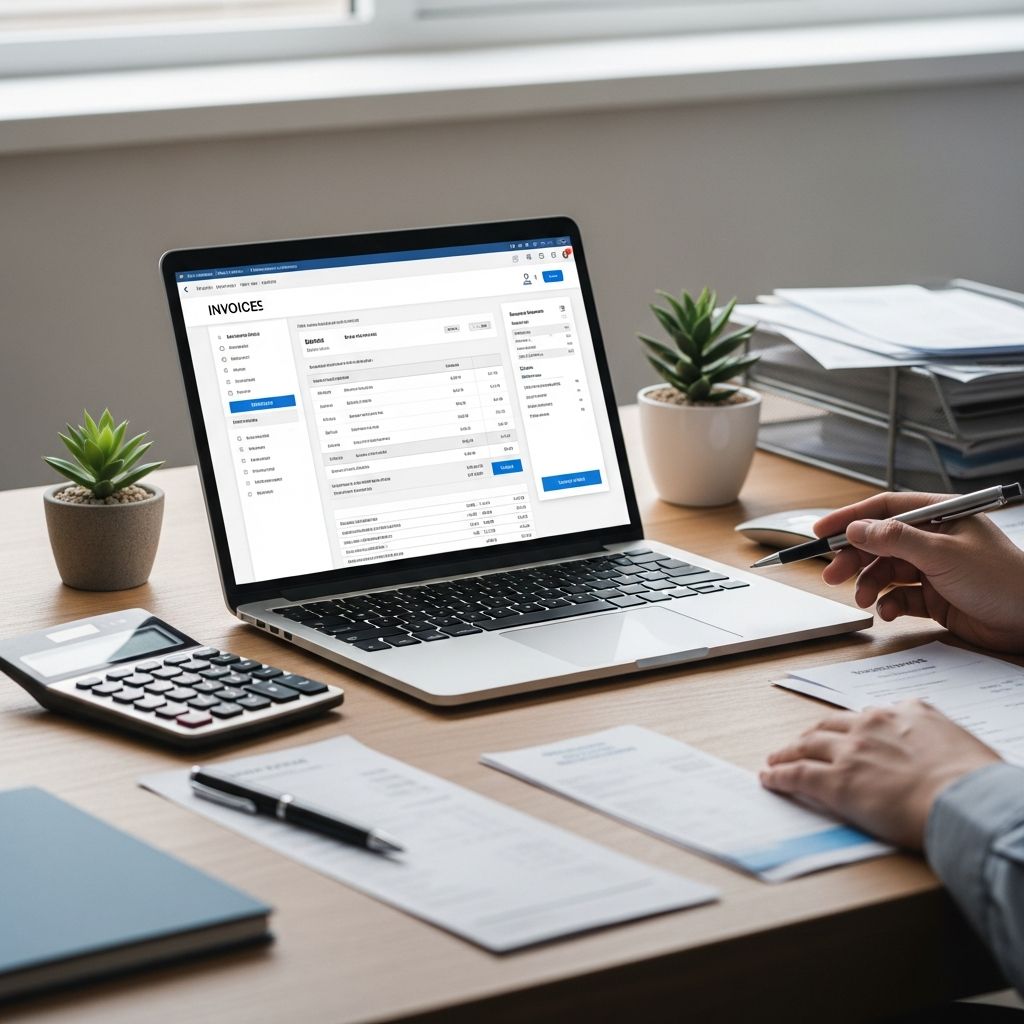
Creating invoices is a fundamental aspect of running any business, whether you’re a freelancer, small business owner, or established company. An invoice serves as a formal request for payment, documenting the services rendered or products sold to your clients. While the process might seem daunting at first, modern tools and templates have made it remarkably simple to generate professional-looking invoices that reflect your business’s credibility and ensure timely payments.
The good news is that you don’t need specialized accounting knowledge or expensive software to create effective invoices. With readily available templates and user-friendly platforms like Google Docs, Microsoft Word, QuickBooks, and Canva, you can have a polished invoice ready to send within minutes. This comprehensive guide will walk you through everything you need to know about creating invoices for your business.
Understanding What an Invoice Is and Why It Matters
An invoice is more than just a bill—it’s a critical business document that serves multiple purposes. It provides a clear record of a transaction between you and your client, includes specific payment terms and due dates, and serves as documentation for accounting and tax purposes. A well-created invoice helps ensure prompt payment, maintains professional relationships, and provides proper financial records for your business.
Beyond payment collection, invoices establish professionalism and credibility. They demonstrate that you run an organized business and take your client relationships seriously. Additionally, invoices are essential for bookkeeping, tax filing, and financial analysis of your business performance.
Essential Information to Include on Your Invoice
Before you start creating your invoice, you need to understand what information must be included. Here are the critical elements that should appear on every invoice you send:
Your Business Information
Start at the top of your invoice with your complete business name. If you’re a freelancer or sole proprietor, you can use your full name instead. Include your business address, phone number, and email address. If you have a business logo, add it to create a professional appearance. Additionally, include any relevant tax identification numbers, such as an Employer Identification Number (EIN) in the United States, a VAT ID in Europe, or a GST/HST number in Canada, depending on your location and business requirements.
Client Information
Below your business information, add your client’s details. Include their full name, company name (if applicable), billing address, and contact information. This ensures clarity regarding who the invoice is being sent to and provides necessary documentation for both parties.
Invoice Identification
Assign a unique invoice number to each invoice you create. This helps with record-keeping and makes it easier to reference specific transactions. Include the invoice date (the date you’re sending it) and the due date—the specific date by which you’re requesting payment. Be clear about your payment terms, such as “Net 30” (payment due within 30 days) or “Due on receipt.”
Itemized Line Items
Create a detailed breakdown of what you’re billing for. For each item or service, include:
– Description of the item or service- Quantity (number of units or hours)- Unit price or rate- Total amount for that line item
Financial Summary
Include a clear breakdown of the financial details:
– Subtotal: Total of all line items before taxes and fees- Taxes: Sales tax, VAT, GST, or other applicable taxes with the tax rate clearly indicated- Discounts: Any discounts offered to the client- Additional fees: Shipping costs or other surcharges- Grand total: The final amount your client owes
Payment Instructions
Specify the payment methods you accept and provide clear payment instructions. Include bank details for transfers, PayPal information, credit card payment options, or any other relevant payment details. Make it easy for your client to pay you.
Terms and Conditions
Add any relevant terms and conditions, such as late payment penalties, warranty information, or service terms. You can also include a thank you note or a personalized message to strengthen your client relationship.
Three Main Methods to Create Your Invoice
Once you understand what to include, you can choose from several approaches to create your invoice. Each method has its advantages, and you can select the one that best fits your needs and technical comfort level.
Method 1: Start from Scratch
If you prefer complete creative control, you can create an invoice from a blank document using Microsoft Word or Google Docs. This approach allows you to design a unique invoice that perfectly matches your brand identity.
To start from scratch, open a blank document in your preferred word processor. Create a header with your business information, then use the table tools to create sections for your client information, invoice details, and itemized line items. Add columns for description, quantity, unit cost, and total cost. Format the document with your brand colors and fonts, then save it as a template so you can reuse it for future invoices.
Method 2: Use an Editable Template
If starting from scratch feels overwhelming, using a pre-designed template is an excellent option. Templates save time and ensure you don’t forget any essential information. Numerous free templates are available online through platforms like Google Docs, Microsoft Word, Canva, and Square. Most templates are professionally designed and can be customized with your business information and branding.
Method 3: Use Invoicing Software
For businesses that send numerous invoices or want automation features, dedicated invoicing software like QuickBooks, PayPal, Square, or 2go Invoice offers comprehensive solutions. These platforms allow you to create invoices, track payments, send automatic reminders, and generate financial reports.
Creating an Invoice Using Google Docs
Google Docs offers free invoice templates that are accessible, easy to customize, and can be shared electronically with clients.
Step-by-Step Process
– Open Google Docs and navigate to the Template Gallery- Search for “invoice” or browse the available templates- Select a template that suits your business needs- Customize the template with your business information, company name, address, contact details, and logo- Add your client’s information in the designated fields- Enter the invoice number, date, and due date- List each service or product with quantity, rate, and total amount- Calculate totals, taxes, and discounts as needed- Specify payment terms and methods- Preview the invoice to ensure all information is accurate and properly formatted- Download the invoice as a PDF to maintain consistent formatting- Send the PDF to your client via email
Creating an Invoice Using Microsoft Word
Microsoft Word provides built-in invoice templates that can be customized quickly and easily.
Using a Pre-made Template
– Open Microsoft Word- Click “New” and search for “invoice”- Browse available templates and select one that matches your needs- Click to open the template- Customize it with your company details, logo, and branding- Fill in client information, itemized services, and payment details- Save the completed invoice as a PDF to ensure formatting consistency
Creating from Scratch in Word
– Open a blank Word document- Type your business name and contact information at the top- Add “Invoice” as the heading- Include the invoice date and a unique invoice number- Create a table with columns for description, quantity, unit cost, and total cost- Add rows for each line item- Adjust column widths to properly display all information- Calculate and display subtotals, taxes, and the total amount due- Add payment terms, due date, and payment instructions- Include any relevant terms and conditions- Save the document as a template by selecting File > Save as Template for future use
Creating an Invoice Using QuickBooks
QuickBooks is a powerful accounting software that streamlines invoice creation and payment tracking.
QuickBooks Invoice Process
– Enter the invoice date, invoice number, and customer billing and shipping addresses- Choose appropriate payment terms from the dropdown menu- Select products or services from your item list- QuickBooks automatically populates descriptions and amounts based on your setup- Add the quantity and rate for each item- Review the invoice for accuracy- Send the invoice directly to the customer- Track payment status through the QuickBooks dashboard
Creating an Invoice Using Canva
Canva offers visually stunning, professionally designed invoice templates that allow you to create branded, creative invoices.
With Canva’s templates, you can customize colors, fonts, and layouts to match your brand. Upload your logo and use the Brand Kit feature to ensure consistency across all your invoices. Design your invoice in a way that reflects your business’s personality, then download it for email or printing.
Best Practices for Professional Invoicing
Creating an invoice is just the beginning. To maximize payment efficiency and maintain professional standards, follow these best practices:
Use Consistent Formatting
Save your invoice as a template and reuse it consistently. This creates a recognizable brand identity and saves time on future invoices. Save your completed invoices as PDF files to maintain formatting regardless of the software the recipient uses.
Be Specific and Clear
Provide detailed descriptions of services or products. Vague descriptions can lead to payment delays or disputes. Include quantities, rates, and clear calculations so clients understand exactly what they’re paying for.
Establish Clear Payment Terms
Specify your payment terms upfront. Common terms include Net 30 (payment due within 30 days), Net 15 (payment due within 15 days), or Due on Receipt. Clear terms help prevent payment delays.
Include Multiple Payment Options
The easier you make it for clients to pay, the faster you’ll receive payment. Accept multiple payment methods such as bank transfers, credit cards, PayPal, or checks.
Number Your Invoices Sequentially
Use sequential numbering for all invoices. This helps with record-keeping and makes it easier to track which invoices have been sent and paid.
Send Invoices Promptly
Send invoices immediately upon completion of work or delivery of products. The sooner you invoice, the sooner you can receive payment.
Tools and Software Comparison
Here’s a comparison of popular invoice creation tools to help you choose the best option for your business:
| Tool | Cost | Ease of Use | Features | Best For |
|---|---|---|---|---|
| Google Docs | Free | Easy | Templates, cloud storage, sharing | Small businesses, freelancers |
| Microsoft Word | Subscription or One-time | Easy | Templates, formatting control | Users familiar with Word |
| QuickBooks | Paid subscription | Moderate | Invoicing, accounting, reporting | Growing businesses, accounting |
| Canva | Free/Paid | Easy | Design templates, branding tools | Creative businesses |
| Square Invoices | Free with transaction fees | Easy | Payment tracking, reminders | Retailers, service providers |
Common Invoicing Mistakes to Avoid
When creating invoices, be mindful of these common mistakes that can delay payment or damage your professional image:
– Incomplete or missing information that makes it difficult for clients to process payment- Spelling errors or typos in client names or company information- Inconsistent numbering or missing invoice numbers- Unclear payment instructions or missing payment details- Forgetting to include tax information or miscalculating taxes- Sending invoices after work is already completed without clear communication- Using unprofessional templates or poor formatting- Not keeping backup copies of sent invoices for your records
Frequently Asked Questions About Invoice Creation
Q: What information is absolutely essential on an invoice?
A: The essential elements include your business information, client information, invoice number, invoice date, due date, itemized description of services or products with quantities and prices, total amount due, payment terms, and payment instructions.
Q: Should I use invoicing software or templates?
A: The choice depends on your business needs. Freelancers and small businesses may find templates sufficient, while larger businesses or those sending frequent invoices benefit from dedicated invoicing software that offers automation and tracking features.
Q: How should I number my invoices?
A: Use sequential numbering starting from 001 or 1001. This helps maintain organization and makes it easy to reference invoices in your records.
Q: What payment terms should I use?
A: Common payment terms include Net 30 (payment within 30 days), Net 15 (payment within 15 days), or Due on Receipt (payment immediately). Choose terms based on your business needs and industry standards.
Q: Can I customize invoice templates?
A: Yes, most templates are fully customizable. You can add your logo, change colors and fonts, adjust layouts, and modify any text to match your business branding and specific requirements.
Q: What file format should I use to send invoices?
A: Save and send invoices as PDF files. This maintains consistent formatting regardless of what software the recipient uses and prevents accidental changes to the document.
Q: How long should I keep copies of sent invoices?
A: Keep copies of all invoices for at least 3-7 years for tax and legal purposes. Maintain organized digital or physical records for easy reference.
Q: Is it better to send paper or digital invoices?
A: Digital invoices are more efficient, environmentally friendly, and easier to track. Most businesses and clients now prefer electronic invoices sent via email.
Conclusion
Creating professional invoices is a straightforward process that’s essential for any business seeking to maintain financial organization and ensure timely payment. Whether you choose to use free templates from Google Docs, Microsoft Word, or Canva, or invest in dedicated invoicing software like QuickBooks, the key is to include all necessary information, maintain consistency, and follow professional standards. By implementing the practices outlined in this guide, you’ll create invoices that reflect your business’s professionalism, facilitate prompt payment, and provide proper documentation for your financial records. Start using these strategies today to streamline your invoicing process and improve your business’s cash flow.
References
- How To Create an Invoice (Plus, Get Our FREE Invoice Template) — Simply Business. 2024. https://www.simplybusiness.com/resource/how-to-create-an-invoice/
- How to make an invoice [+ 12 free templates] — Zapier. 2024. https://zapier.com/blog/invoice-template/
- How to Write an Invoice For Small Business (+ Free Template) — Salesforce. 2024. https://www.salesforce.com/blog/how-to-write-an-invoice/
- How to format an invoice – an easy guide for small business owners — 2go Invoice. 2024. https://invoice.2go.com/learn/invoices/how-to-format-an-invoice/
- How To Create an Invoice: Guide for Businesses — Square. 2024. https://squareup.com/us/en/the-bottom-line/operating-your-business/how-to-create-an-invoice
- Free, printable, professional invoice templates to customize — Canva. 2024. https://www.canva.com/invoice/templates/
- Create estimates and invoices — Microsoft Support. 2024. https://support.microsoft.com/en-us/office/create-estimates-and-invoices-b5d08f2c-4ca2-47e7-ba41-1f472c81b7c4
Similar Articles








Read full bio of medha deb