Undefined: Calculate Variance In Excel With 6 Functions
Master variance calculations in Excel with step-by-step guides for both sample and population data.
How to Calculate Variance in Excel
Variance is a fundamental statistical concept that measures how far a set of values is spread from the average value, or mean. Understanding variance is essential for anyone working with data, whether you’re an investor analyzing stock returns, a researcher examining experimental results, or a business analyst evaluating performance metrics. In Excel, calculating variance is straightforward thanks to built-in functions that handle the complex mathematical operations automatically.
When variance is zero, all values in your dataset are identical. As variance increases, it indicates greater dispersion among the data points. This metric is invaluable for risk assessment, quality control, and financial forecasting. Fortunately, Excel provides several functions to calculate variance, making it accessible even for those without advanced statistical training.
Understanding Variance Fundamentals
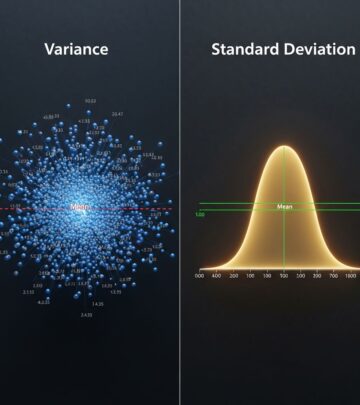
Before diving into Excel calculations, it’s important to understand what variance represents mathematically. Variance measures the average of squared differences from the mean. This squared deviation approach prevents positive and negative differences from canceling each other out, giving you an accurate picture of data spread.
There are two primary types of variance calculations: population variance and sample variance. Population variance includes all data points in your complete dataset, while sample variance uses only a subset drawn from a larger population. The mathematical difference between these two approaches lies in the denominator—sample variance divides by (n-1) instead of n, accounting for the fact that a sample typically underestimates true population variance.
Population Variance vs. Sample Variance
Population variance is calculated when you have access to the entire dataset. This is common when analyzing a specific group’s complete data, such as final exam scores for all students in a particular class or monthly revenue for every branch of a company.
Sample variance is used when you’re working with a subset of a larger population. For example, a high school with 1,500 students in the senior class might analyze a random sample of 150 exam scores to identify testing trends. In statistics, using sample variance helps provide a more accurate estimate of the population variance.
Excel Variance Functions Explained
Excel offers six primary functions for variance calculation, each serving specific purposes depending on your data type and whether you’re analyzing a population or sample.
Sample Variance Functions
VAR.S is the modern, recommended function for calculating sample variance. It automatically ignores text and logical values, making it suitable for most datasets containing numerical values. This function replaces the older VAR function, offering enhanced speed and reliability.
VAR is the original Excel variance function for samples. While still functional, it has been superseded by VAR.S, which provides improved performance.
VARA calculates sample variance while including text and logical arguments in the calculation. In VARA, TRUE values are treated as 1 and FALSE values as 0. This function is useful when your dataset mixes different data types and you want to include logical values in your analysis.
Population Variance Functions
VAR.P is the modern function for calculating population variance when you have the complete dataset. Like VAR.S, it ignores text and logical values, focusing solely on numerical data.
VARP is the older population variance function that has been replaced by VAR.P. While still available in Excel, VAR.P is the preferred choice for new calculations.
VARPA calculates population variance while accommodating text and logical values, similar to VARA but for complete populations rather than samples.
How to Calculate Population Variance in Excel
Calculating population variance involves several straightforward steps that organize your data and apply the appropriate Excel function.
Step 1: Enter and Arrange Your Data
Begin by importing your data into Excel and organizing it according to your evaluation needs. For instance, if a professor wants to calculate variance for class exam scores representing the entire population, she might organize student names in column A and corresponding grades in column B. Data organization depends on your specific analysis needs, but clarity and consistency are essential.
Step 2: Select a Cell for Your Formula
Click on an empty cell in your spreadsheet where you want the variance result to appear. Many analysts create a dedicated “Variance” column to keep calculations organized and easy to reference.
Step 3: Type the VAR.P Function
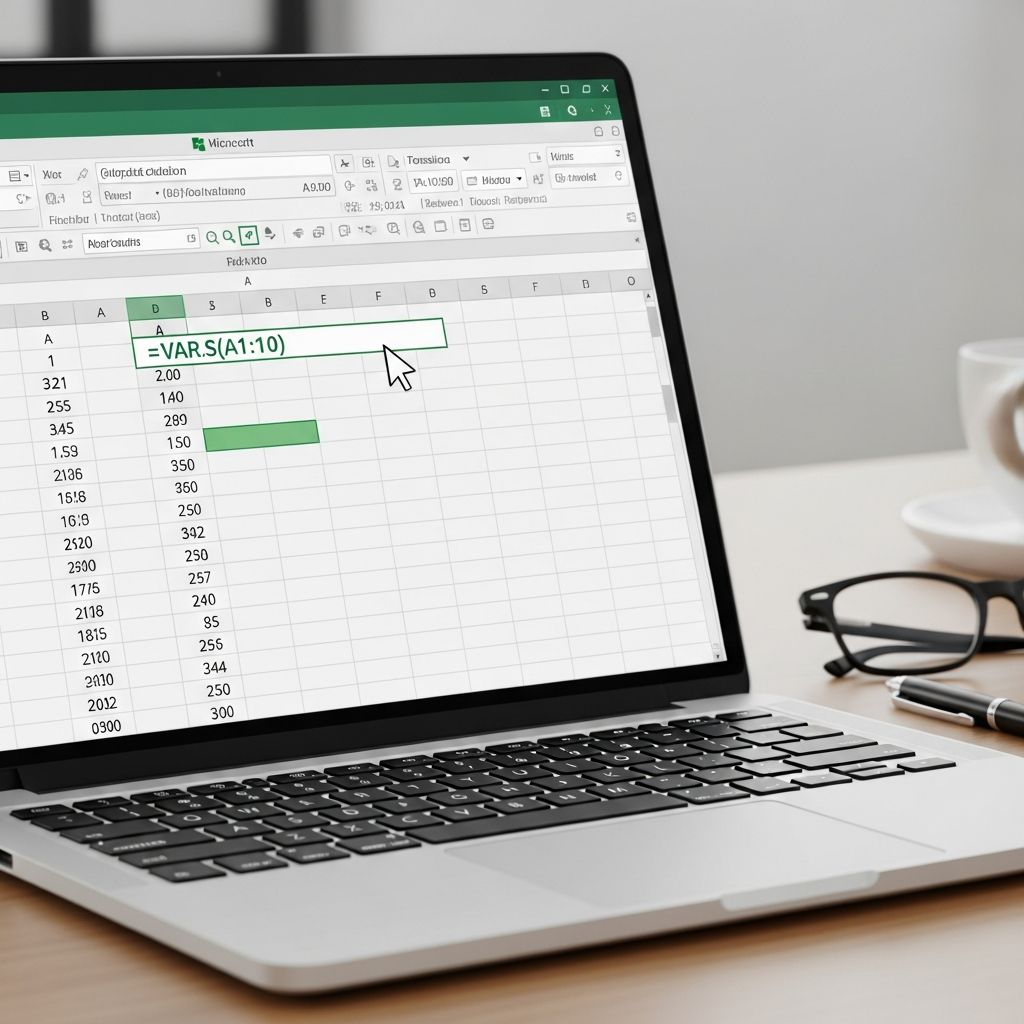
Enter the command function using the syntax =VAR.P(cell:cell). For example, if exam scores appear in cells B2 through B207, and you enter the formula into cell C2, the syntax would be =VAR.P(B2:B207). This tells Excel to calculate the variance for all values in the specified range.
Step 4: Press Enter
After typing your formula, press Enter to execute the calculation. Excel immediately computes the variance and displays the result in your selected cell.
How to Calculate Sample Variance in Excel
When working with sample data rather than complete populations, follow a similar process but use the VAR.S function instead.
Step 1: Select Your Population Sample
Identify and collect a representative sample from your larger population. For example, an environmental scientist studying water pH changes over six months might take one pH measurement for each month rather than analyzing all 182 daily measurements. Proper sampling techniques ensure your variance calculation accurately reflects population characteristics.
Step 2: Arrange Sample Data in Excel
Enter your sample data into the spreadsheet, organizing it clearly. Place related information in adjacent columns or rows to maintain data integrity and make calculations easier to verify.
Step 3: Select an Empty Cell
Choose a cell where your variance result will appear. Many analysts prefer to place it adjacent to or below their dataset for easy reference.
Step 4: Enter the VAR.S Function
Type the formula using the syntax =VAR.S(cell:cell). If you’re comparing variance across two different months with data in cells B2:B32 and C2:C33, you would enter =VAR.S(B2:B32;C2:C33).
Step 5: Press Enter and Review Results
Press Enter to calculate your sample variance. A larger resulting number indicates that data points are spread widely from the mean, while a smaller number suggests data points cluster tightly around the mean value.
Practical Examples of Variance Calculations
Population Variance Example
Consider a teacher who wants to calculate the variance of her entire class’s exam scores. Since the class represents a complete population rather than a sample, she uses the VAR.P function. She enters student names in column A, their nine exam scores in column B, and places her variance formula in column C. By applying =VAR.P(B2:B10), she obtains the population variance for her class’s performance. This calculation helps her understand how consistently students performed—a high variance might indicate varied achievement levels, while low variance suggests more uniform performance.
Sample Variance Example
An environmental scientist tracking water quality wants to evaluate pH changes over six months. Rather than analyzing approximately 182 daily measurements, she takes a strategic sample of one value for each month. She enters months in column A, pH data in column B, and applies the VAR.S function in column C using the formula =VAR.S(B2:B7). This sample variance calculation efficiently estimates how pH values vary throughout the year without requiring analysis of every single measurement.
Direct Value Entry Alternative
In addition to referencing cell ranges, you can enter values directly into Excel variance functions. For example, =VAR.S(1,2,3,4,5,6) calculates sample variance for those six numbers directly, while =VAR.P(1,2,3,4,5,6,7,8,9,10) calculates population variance for ten values. This method is useful for quick calculations or when you have a small dataset to analyze.
Understanding Variance Results
After calculating variance, interpreting your results is crucial. Variance values are expressed in squared units of your original data. For instance, if analyzing sales numbers, variance is expressed in squared dollars. A variance of zero indicates no variability—all values are identical. As variance increases, so does the spread of your data.
In practical applications, investors use variance to assess investment risk, quality managers use it to monitor production consistency, and researchers use it to understand experimental variability. Higher variance in investment returns suggests greater risk, while lower variance indicates more stable, predictable returns.
Addressing Common Errors and Tips
When calculating variance in Excel, certain errors can occur. Including text or non-numeric values in standard VAR.S or VAR.P functions may cause errors. If you need to include text or logical values, use VARA or VARPA instead. Ensure your data is properly formatted and that you’re using the correct function for your dataset type.
Double-check your cell references to ensure they encompass all relevant data. A common mistake involves accidentally excluding important data points from your range. Additionally, ensure consistency between sample and population approaches—don’t mix sample data analysis with population formulas, as this produces inaccurate results.
Related Statistical Concepts
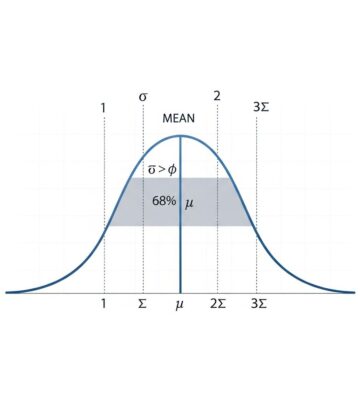
Understanding variance connects to several related statistical measures. Standard deviation, calculated as the square root of variance, expresses variability in the original data units rather than squared units, making it often more intuitive to interpret. Covariance measures how two variables move together, while coefficient of variation expresses variance relative to the mean, allowing comparisons across datasets with different scales.
Frequently Asked Questions
Q: What’s the difference between VAR.S and VAR.P?
A: VAR.S calculates sample variance, dividing by (n-1), while VAR.P calculates population variance, dividing by n. Use VAR.S when you have a subset of data; use VAR.P when you have the complete population.
Q: Can I include text values in variance calculations?
A: Standard VAR.S and VAR.P functions ignore text values. If you need to include text or logical values, use VARA (for samples) or VARPA (for populations) instead.
Q: How do I calculate standard deviation from variance?
A: Standard deviation is the square root of variance. Use the formula =SQRT(cell_containing_variance) or use Excel’s built-in STDEV functions directly.
Q: What does high variance indicate?
A: High variance indicates that data points are spread far from the mean, suggesting significant variability in your dataset. In investments, this suggests higher risk.
Q: Can I calculate variance for non-numeric data?
A: No, variance requires numeric data. If your spreadsheet contains mixed data types, ensure you’re only calculating variance for numeric columns or use VARA/VARPA for special cases with logical values.
References
- How To Calculate Variance in Excel (With Steps and Examples) — Indeed Career Advice. 2024. https://www.indeed.com/career-advice/career-development/how-to-calculate-variance-in-excel
- Excel Variance Function: VAR – SpreadsheetWeb — SpreadsheetWeb. 2024. https://spreadsheetweb.com/excel-var-function/
- How To Calculate Variance in Excel [Step-by-Step Guide] — CareerFoundry. 2024. https://careerfoundry.com/en/blog/data-analytics/calculate-variance-in-excel/
- Calculate Variance in Excel: VAR.S vs VAR.P Explained — Future Savvy. 2024. https://www.futuresavvy.co.uk/tips-tricks/can-you-calculate-variance-using-excel
- VAR function — Microsoft Support. 2024. https://support.microsoft.com/en-us/office/var-function-1f2b7ab2-954d-4e17-ba2c-9e58b15a7da2
Similar Articles








Read full bio of Sneha Tete