Boost Your Wi-Fi Signal: 15 Easy, Budget-Friendly Fixes
Discover proven, cost-effective strategies to eliminate Wi-Fi dead zones and achieve strong, reliable internet coverage throughout your entire home.
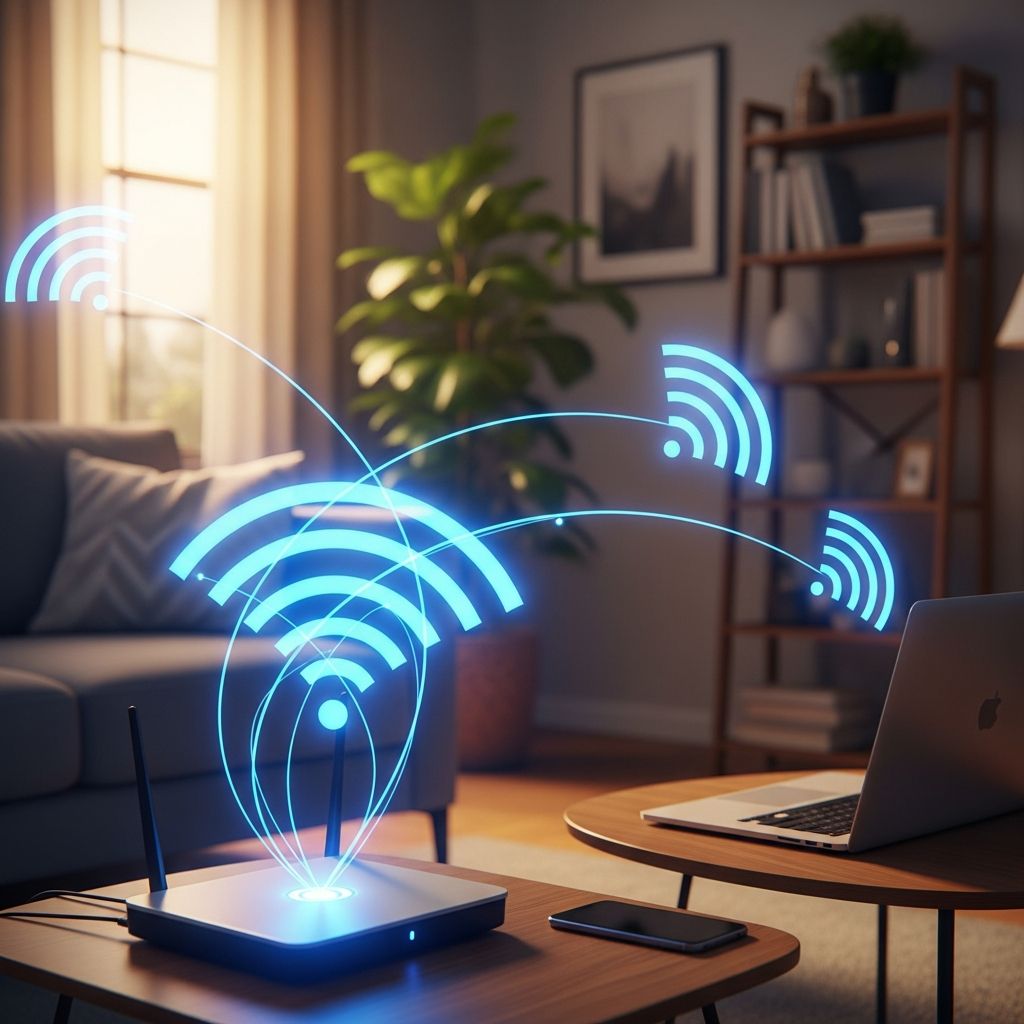
Weak Wi-Fi signals create frustrating dead zones, slow streaming, and interrupted video calls. Fortunately, you don’t need expensive overhauls to fix it. This guide outlines practical, budget-friendly steps—from basic tweaks to advanced solutions—to achieve strong, reliable coverage throughout your home. Start with simple changes like repositioning your router and progress to mesh systems for larger spaces.
1. Optimize Your Router’s Location
The most impactful first step is placing your router centrally in your home, elevated to chest height or higher, away from walls, floors, and obstacles. Central positioning allows the signal to radiate evenly in all directions, reaching farther rooms and floors.
- Avoid corners, closets, basements, or enclosed cabinets where signals weaken quickly.
- Keep it distant from metal objects like refrigerators, microwaves, filing cabinets, or concrete walls that block or reflect signals.
- Elevate on a shelf; signals propagate better horizontally than vertically from the floor.
- Test multiple spots using a Wi-Fi analyzer app to measure signal strength (aim for -50 dBm or better).
Consumer Reports notes that relocating from a suboptimal spot like a basement can dramatically extend range without extra hardware.
2. Update Your Router Firmware
Outdated firmware causes performance issues, security vulnerabilities, and signal inefficiencies. Manufacturers release updates to fix bugs, improve stability, and enhance range.
To update:
- Access your router’s admin panel (usually 192.168.1.1 or similar; check manual).
- Log in with admin credentials.
- Navigate to firmware or advanced settings.
- Check for and install updates.
- Restart the router post-update.
Perform this monthly, as updates often include Wi-Fi optimizations for newer standards like Wi-Fi 6.
3. Optimize Wi-Fi Channels
Neighboring networks cause interference on crowded channels. Use non-overlapping channels: 1, 6, or 11 for 2.4 GHz; scan 5 GHz for least congested options.
- Download a Wi-Fi analyzer app (e.g., for Android/iOS) to visualize channel usage.
- Manually set channels in router settings; auto-select often fails in dense areas.
- 2.4 GHz offers better range through walls but more interference; 5 GHz is faster with shorter range.
- Narrower channel widths (20 MHz for 2.4 GHz, 80 MHz for 5 GHz) reduce overlap and boost signal by 5-6 dBm.
4. Upgrade to a Modern Router
Older routers lack Wi-Fi 6/6E support, limiting speed, capacity, and range. Upgrading provides:
- Faster speeds and multi-device handling.
- Improved range via beamforming (directs signals to devices).
- Less interference and future-proofing.
Wi-Fi 6 excels in coverage for smart homes with many devices.
5. Implement Mesh Networking
Mesh systems blanket your home with nodes that communicate seamlessly, eliminating dead zones. Ideal for multi-story or large homes.
Setup tips:
- Place main node centrally; satellites midway to weak areas.
- Use wired backhaul (Ethernet) for best performance.
- Avoid obstructions between nodes; position away from appliances.
Consumer Reports recommends central hub placement between satellites for optimal multi-floor coverage.
6. Use a Wi-Fi Range Extender
Extenders rebroadcast signals to hard-to-reach areas. Place halfway between router and dead zone; use same SSID for roaming.
- Best for single-room boosts; not ideal for whole-home.
- Dual-band models maintain speed better.
7. Optimize Router Settings
Tweak advanced settings for better performance:
- Band steering: Directs devices to 5 GHz when possible.
- QoS: Prioritizes traffic (e.g., video over browsing).
- Transmit power: Max for range; reduce if overheating.
- Channel width: Adjust per band.
8. Utilize Ethernet Connections
Wire stationary devices (desktops, TVs) via Ethernet to free Wi-Fi bandwidth. Cables under 300 feet work best; use Cat6 for speed.
9. Upgrade Router Antennas
Replace stock antennas with high-gain omnidirectional (360° coverage) or directional (focused beam) models to extend range.
10. Enable Quality of Service (QoS)
QoS prioritizes bandwidth for critical apps, preventing lag during peak use.
11. Secure Your Network
Strong security prevents bandwidth theft:
- Use WPA3 encryption.
- Complex passwords.
- Guest networks for visitors.
- Disable WPS; enable MAC filtering.
12. Reduce Interference
Avoid microwaves, cordless phones, baby monitors on 2.4 GHz. Separate router from Bluetooth devices.
13. Use Powerline Adapters
These use home wiring to extend networks to distant rooms, bypassing walls. Great for concrete homes.
14. Consider Professional Installation
For complex layouts, pros conduct site surveys and custom setups.
15. Maintain Your Network
Regular upkeep ensures longevity:
- Monthly: Firmware/security checks, performance tests.
- Quarterly: Coverage mapping, reboot.
- Monitor for overheating or overload.
Frequently Asked Questions
What is the fastest way to improve Wi-Fi signal strength?
Optimize router placement centrally, elevated, away from obstacles—boosts signal 25-50% instantly.
How can I extend Wi-Fi to my whole house?
- Central router + mesh/extenders.
- Powerline adapters for walls.
- Optimal channels.
Does Wi-Fi 6 improve coverage?
Yes, via beamforming and efficiency for better range and device handling.
Why does my signal drop suddenly?
Interference, overload, firmware issues, obstacles.
How to boost through concrete walls?
Powerline adapters, mesh nodes on both sides, high-gain antennas.
References
- How to Boost Wi-Fi Signal: Complete Guide to Stronger Internet (2024) — HP Tech Takes. 2024. https://www.hp.com/us-en/shop/tech-takes/how-to-boost-wifi-signal
- How to Get a Stronger WiFi Signal — Consumer Reports. 2023. https://www.consumerreports.org/electronics-computers/wireless-routers/how-to-get-a-stronger-wifi-signal-a4335686956/
- How I Boosted My Wi-Fi Range by 3x with 3 Simple Tweaks! — YouTube (Behfor). 2024-08-22. https://www.youtube.com/watch?v=NutJnxBk3Ro
Similar Articles








Read full bio of Sneha Tete