Google Sheets Budget Mastery
Transform your finances with Google Sheets: build, track, and optimize budgets effortlessly for lasting financial control.
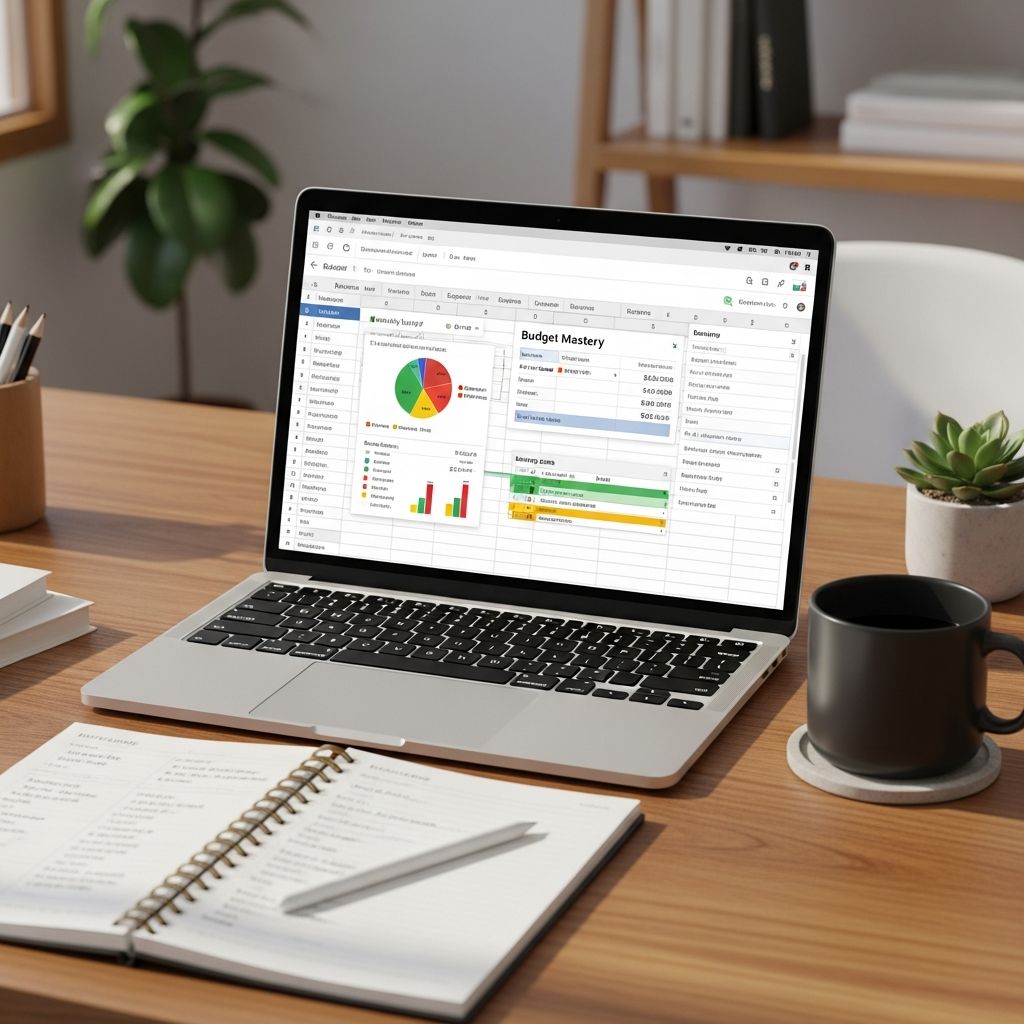
Google Sheets offers a powerful, free platform for crafting personalized budgets that adapt to your financial life. By leveraging its formulas, charts, and collaboration features, anyone can gain control over income, expenses, and savings goals.
Why Choose Google Sheets for Budgeting
Unlike rigid apps, Google Sheets provides unlimited customization without subscription fees. Its cloud-based access ensures you can update budgets from any device, while real-time sharing allows family input. Official guidance from financial regulators emphasizes tracking income against expenses as the foundation of any plan, making Sheets ideal for this baseline assessment.
Banking experts highlight gathering financial data over months for accuracy, a process Sheets simplifies with import tools. This flexibility supports methods like the 50/30/20 rule, allocating 50% to needs, 30% to wants, and 20% to savings and debt.
Setting Up Your Core Budget Framework
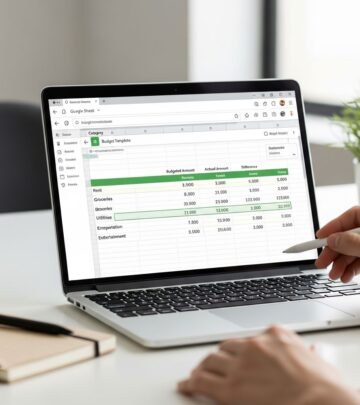
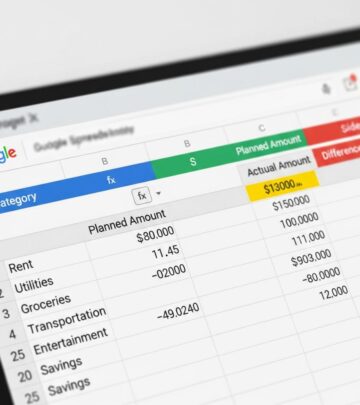
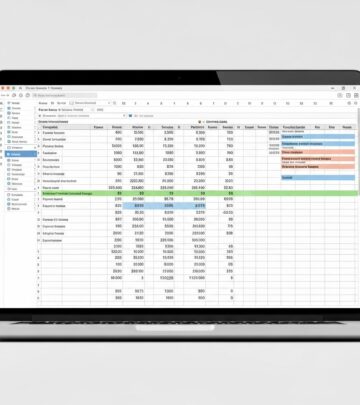
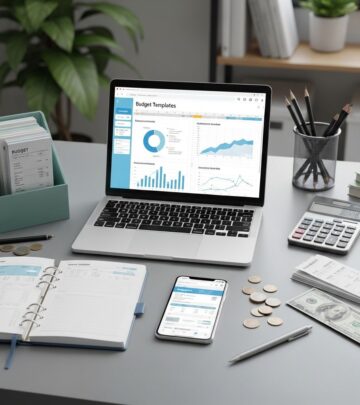
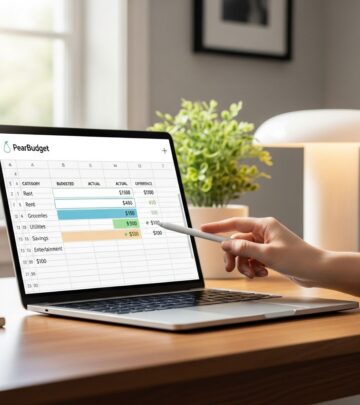
Begin by creating a new Sheet and structuring tabs for overview, income, expenses, and summary. Use columns for categories, budgeted amounts, actuals, and differences.
- Income Tab: List sources like salary, freelance, or benefits. Sum with
=SUM(B2:B10). - Expenses Tab: Divide into fixed (rent, loans) and variable (groceries, entertainment).
- Summary Tab: Pull totals using
=Income!B11 - Expenses!C11for net cash flow.
This setup reveals surpluses or shortfalls immediately, prompting adjustments like cutting discretionary spends.
Advanced Formulas for Smart Tracking
Elevate your budget with functions that automate insights. The IF statement flags overspending: =IF(D2>C2, "Over", "On Track"). For trends, SUMIF categorizes: =SUMIF(A:A, "Groceries", D:D).
| Category | Formula Example | Purpose |
|---|---|---|
| Monthly Total | =SUMIFS(Actuals, Months, ">=1/1/2026", Months, "<=1/31/2026") | Aggregate by date |
| Variance | =Budgeted - Actual | Spot discrepancies |
| Percentage | =Actual/Budgeted | Visual progress |
These tools ensure every dollar is accounted for, aligning with zero-based budgeting where income minus expenses equals zero.
Visualizing Data with Charts and Dashboards
Insert pie charts for expense breakdowns or line graphs for monthly progress via Insert > Chart. Conditional formatting colors cells red for overspends: Format > Conditional Formatting > Color scale.
A dashboard tab consolidates key metrics: net worth tracker, savings rate (=Savings/Income), and debt payoff progress. This mirrors advice to review budgets regularly for life changes.
Implementing Proven Budgeting Strategies
The 50/30/20 Allocation Method
Assign percentages directly in Sheets. Create a row for needs (50%), wants (30%), savings/debt (20%). Use MIN functions to cap categories: =MIN(Income*0.5, NeedsTotal).
Zero-Based Budgeting
Every dollar gets a job. After listing expenses, roll over remainders to savings. Formulas auto-adjust: =Income - SUM(Expenses) + PreviousSurplus.
Emergency Fund Builder
Dedicate a section for 3-6 months' essentials. Automate transfers with scripts or alerts. Start small, like $50/paycheck, for momentum.
Tracking Habits and Making Adjustments
Link bank CSVs via File > Import for auto-updates. Monthly reviews compare actuals to budgets, identifying leaks like unused subscriptions. Set alerts with SPARKLINE for mini-charts in cells.
Categorize rigorously: fixed (housing, insurance), variable (food, gas), savings/debt. This simplicity sustains long-term adherence.
Custom Templates for Specific Goals
Build debt snowball sheets ranking by balance, with payoff simulators. For families, add kid-related columns. Share via link for accountability.
Savings goals use progress bars: REPT("|", Actual/Goal*10). These adaptations make budgeting engaging and goal-oriented.
Overcoming Common Challenges
- Overspending: Freeze non-essential rows or use data validation dropdowns for categories.
- Forgetfulness: Apps like Google Sheets mobile notify on edits; set email scripts for low balances.
- Irregular Income: Average last 6 months with
.
Consistency trumps perfection; real numbers over ideals ensure stickiness.
Integrating with Other Tools
Connect to Google Forms for receipt logging or Apps Script for bank API pulls (advanced). Pair with high-yield savings for optimized returns.
Frequently Asked Questions
How do I import bank data into Google Sheets?
Download CSV from your bank, then File > Import > Upload. Use QUERY for cleaning: =QUERY(Import!A:D, "SELECT * WHERE Col1 IS NOT NULL").
Can families collaborate on a shared budget?
Yes, share with edit access. Protect sheets to lock formulas: Tools > Protect sheet.
What's the best way to forecast future months?
Copy rows and adjust for raises/inflation. Use FORECAST: =FORECAST(B12, C2:C11, A2:A11).
Is Google Sheets secure for financial data?
Enable 2FA and use incognito for sensitive views. Avoid public shares.
How often should I review my budget?
Weekly for transactions, monthly for adjustments.
Scaling Up: From Beginner to Pro
Start simple, then add pivot tables for yearly analysis. Scripts automate reports: function monthlyReport() { /* email summary */ }.
For 2026, factor inflation (project 2-3%) in projections. This proactive approach builds wealth steadily.
References
- 6-Step Financial Plan for 2026 — DFPI (CA.gov). 2026. https://dfpi.ca.gov/news/insights/6-step-financial-plan-for-2026/
- How to Set a Personal Budget for 2026 — Stellar Bank. 2026. https://www.stellar.bank/Resources/Insights/How-to-Set-a-Personal-Budget-for-2026/
- How to Create a 2026 Household Budget That Actually Sticks — NACC CPAs. 2026. https://www.naccacpas.com/blog/how-to-create-a-2026-household-budget-that-actually-sticks
- How to Create a Household Budget for 2026 — NESC FCU. 2026. https://www.nescfcu.org/how-to-create-a-household-budget
- Tips for Successful Budgeting in 2026 — Aspire Wealth Group. 2026. https://aspirewealthgrp.com/tips-for-successful-budgeting-in-2026/
Similar Articles







Read full bio of medha deb