Google Docs Resumes: Create Professional Resumes Easily
Master Google Docs resumes: Templates, tips, and best practices for job seekers.
Google Docs Resumes: Your Complete Guide to Professional Resume Creation
In today’s competitive job market, your resume is often your first impression with potential employers. Creating a professional, well-formatted resume has never been easier thanks to Google Docs and its extensive collection of free resume templates. Whether you’re a recent graduate entering the workforce or an experienced professional seeking a new opportunity, Google Docs provides accessible tools to help you craft a compelling resume that showcases your qualifications effectively.
Google Docs stands out as a powerful alternative to traditional resume-writing software because it offers flexibility, accessibility, and professional-quality templates without requiring any software installation or financial investment. This comprehensive guide will walk you through everything you need to know about creating resumes in Google Docs, from selecting the right template to optimizing your content for both human recruiters and automated applicant tracking systems (ATS).
Why Choose Google Docs for Your Resume
Google Docs has become the go-to platform for resume creation for several compelling reasons. The platform eliminates common barriers that job seekers face when creating professional documents, making the resume-writing process more accessible and efficient than ever before.
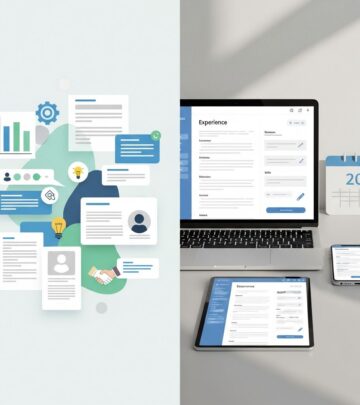
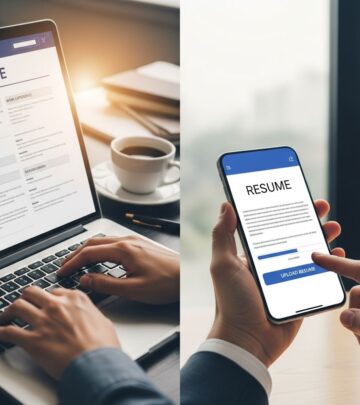
First and foremost, Google Docs requires no software installation. You can access your resume from any device with an internet connection—whether you’re using a laptop, tablet, or smartphone. This accessibility means you can make quick edits or updates on the fly, perfect for when you discover a job posting that requires specific keywords or experience descriptions.
The platform also offers real-time collaboration features that allow you to share your resume with mentors, career coaches, or trusted colleagues for feedback. Rather than exchanging multiple versions through email, you can enable commenting and suggestion modes, making the revision process seamless and organized.
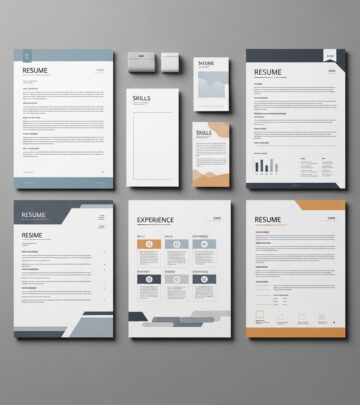
Additionally, Google Docs templates are professionally designed and come in various styles including modern, minimalist, creative, and traditional formats. This variety ensures that regardless of your industry or career stage, you can find a template that aligns with your professional image and industry norms.
Accessing Google Docs Resume Templates
Getting started with a Google Docs resume template is straightforward and takes only a few minutes. Follow these simple steps to find and implement a professional template:
Step 1: Open Google Docs
Visit Google Docs and log into your Google account. If you don’t have an account, you can create one for free.
Step 2: Access the Template Gallery
Once logged in, click on “Template Gallery” located at the top right of the Google Docs homepage. This opens a curated selection of professionally designed templates.
Step 3: Select the Resumes Category
Scroll through the template options and select the “Resumes” category to view all available resume templates.
Step 4: Choose Your Template
Browse through the available templates and click on the one that best suits your style and industry. Take time to preview each option to ensure it matches your professional brand.
Step 5: Customize Your Resume
Once you’ve selected a template, click to open it. Google Docs will automatically create a copy in your Google Drive. You can now modify text, fonts, colors, and layout to personalize your document with your information.
Popular Google Docs Resume Templates
Google Docs offers five fundamental resume templates that serve as excellent starting points for job seekers at any career stage. Understanding the unique features of each template can help you select the one that best aligns with your professional goals.
The Swiss Template uses a skills-first resume format, making it ideal for emphasizing technical knowledge and competencies. This template is particularly valuable for career changers or highly skilled workers who want to highlight their abilities upfront before discussing chronological work history. Its simple design allows you to easily expand the skills section or convert it into a combination resume format.
The Serif Template stands out for its flexibility and customization options. It includes several optional sections such as Awards, Projects, and Languages, allowing you to tailor the resume to your specific background and the requirements of your target position. The clean layout makes it simple to add or remove sections as needed.
Beyond Google’s native offerings, numerous customized templates have been developed by professional resume designers. The Canvas template features neat cell borders that cleanly divide each section, making it easy for employers to scan for key details. This template works particularly well for individuals in casual fields such as advertising or marketing.
The Cascade template incorporates bright blue headers and unique icons for contact information. Its structure emphasizes work experience, making it ideal for professionals with several years of career progression who want to showcase their professional journey.
The Geometric template offers a modern aesthetic with pixelated graphics and clean fonts, making it an excellent choice for professionals in tech, design, or marketing industries where contemporary design sensibility is valued.
Resume Templates for Different Career Stages
Your resume format should align with your professional experience level and career objectives. Google Docs templates cater to various career stages, ensuring that your resume accurately represents your background.
Entry-Level Candidates should consider templates that emphasize education and skills rather than extensive work history. Templates like Spearmint are designed specifically for early-career professionals and recent graduates. These templates typically include sections for extracurricular activities, volunteer work, and academic achievements—elements that help demonstrate transferable skills when professional experience is limited.
Mid-Career Professionals benefit from templates that prioritize work history with clean timelines and organized structure. The London and Cascade templates work well for professionals with established careers, using subtle design elements to highlight technical expertise while maintaining professionalism.
Executives and Senior-Level Professionals should opt for subdued, sophisticated designs that emphasize strategic achievements and leadership impact. These templates typically feature ATS-optimized layouts that use strategic white space to draw attention to significant accomplishments and decision-making influence.
Resume Formatting Best Practices
Regardless of which template you select, following established resume formatting best practices ensures your document is both visually appealing and easily readable by both human recruiters and automated systems.
Alignment and Margins
Maintain consistent left-alignment for your content throughout your resume. Set your margins to one inch on all sides—this standard margin width ensures your resume fits neatly on a single page (or two pages for more experienced professionals) while maintaining adequate white space for readability.
Font Selection
Choose simple, professional fonts such as Arial, Calibri, or Times New Roman in 11- or 12-point sizes. While it may be tempting to experiment with decorative or unusual fonts, prioritize clarity and professionalism. Avoid fonts that are difficult to read or that may not display correctly on different devices or when converted to PDF format.
Section Headers
Use clear, consistent section headers such as “Professional Experience,” “Education,” “Skills,” and “Certifications.” These headers help both readers and ATS systems navigate your resume and quickly locate key information. Consider using subtle formatting like bold text or slight color variations to make headers stand out without appearing unprofessional.
Length Considerations
Keep your resume to one or two pages maximum. Entry-level candidates and those with less than five years of experience should aim for a single page, while more experienced professionals may justify a second page. Recruiters typically spend only seconds scanning each resume, so conciseness is crucial.
Customizing Your Google Docs Resume Template
While templates provide an excellent foundation, the true power of Google Docs resumes lies in your ability to customize them effectively for each position you target.
Layout Adjustments for ATS Compatibility
Many resume templates include complex tables and design elements that can confuse ATS software. If ATS compatibility is a concern, consider removing default tables and replacing them with clean text formatting and bullet points. This approach ensures both human readers and automated parsing systems can navigate your document successfully.
Font and Color Modifications
While customization is encouraged, maintain professionalism by sticking to traditional font choices and using muted accent colors for headers. A single accent color can add visual interest without appearing unprofessional or difficult to read.
Content Prioritization
Tailor your resume content to each position by replacing generic section headers with role-specific alternatives. For IT positions, use “Technical Proficiencies” instead of “Skills.” For customer service roles, highlight “Client Management Expertise.” For financial positions, emphasize specific accounting experience and industry knowledge relevant to the position.
Industry-Specific Resume Strategies
Different industries have distinct resume expectations and conventions. Adapting your resume to industry norms increases your chances of success.
Creative Fields
Professionals in design, writing, photography, and other creative industries should select templates that showcase modern headers and allow space for portfolio links or visual samples. Creative resumes can incorporate more design elements than traditional corporate resumes while remaining professional and readable.
Technical and IT Roles
Technology professionals should prioritize templates that accommodate GitHub profiles, LinkedIn URLs, and coding language proficiency listings. Technical resumes should emphasize specific skills, programming languages, frameworks, and technologies relevant to the position, often using tiered proficiency levels to indicate expertise.
Corporate and Finance Positions
Finance and corporate professionals benefit from clean, conservative templates with minimal design elements. Focus on quantifiable achievements, financial metrics, and industry-specific terminology that demonstrates your understanding of the field.
Optimizing Your Resume Content
The template provides structure, but your content determines whether your resume successfully captures recruiter attention and secures interviews.
Action Verbs and Keywords
Begin each bullet point with strong action verbs such as “developed,” “implemented,” “managed,” or “achieved.” Research the job description thoroughly and incorporate relevant keywords and industry terminology throughout your resume. ATS systems scan for specific keywords, so matching the language used in job postings significantly improves your resume’s visibility.
Quantifiable Achievements
Rather than simply listing job duties, emphasize measurable accomplishments and outcomes. Instead of “responsible for sales,” write “increased quarterly sales by 25% through targeted marketing initiatives.” Numbers and metrics make achievements more compelling and memorable.
Bullet Point Structure
Use bullet points to organize information clearly and make your resume easy to scan. Each bullet point should contain a complete thought but remain concise—typically one to two lines.
Exporting and Sharing Your Resume
Google Docs provides flexible options for sharing and exporting your completed resume.
Sharing with Recruiters
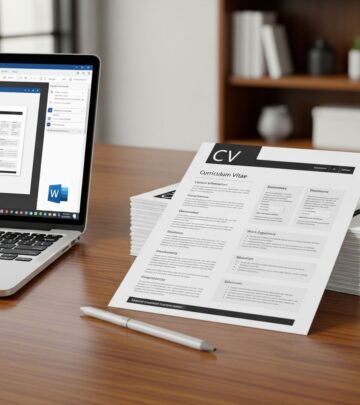
You can share your Google Docs resume directly with recruiters by generating a shareable link. However, many employers prefer receiving resumes in PDF or Word format. Google Docs allows you to export your resume in multiple formats: PDF, Word (.docx), or plain text.
File Naming Convention
When submitting your resume, use a professional file name such as “FirstName_LastName_Resume.pdf” rather than generic names like “Resume.pdf” or “My Resume.” This naming convention makes it easier for recruiters to identify and locate your document among dozens or hundreds of applications.
Frequently Asked Questions About Google Docs Resumes
Q: How do I make a resume on Google Docs?
A: Log into your Google account, visit Google Docs, click “Template Gallery,” select “Resumes,” choose your preferred template, and click to open it. Google Docs automatically creates a copy in your Drive that you can customize with your information.
Q: How do I upload an external resume template to Google Docs?
A: Sign into Google Drive, click “New,” select “File upload,” choose the template file from your computer, and double-click the uploaded file. It will automatically open in Google Docs for editing.
Q: Are Google Docs resumes ATS-compatible?
A: Most Google Docs templates are ATS-compatible, but complex tables and unusual formatting can cause parsing issues. To maximize compatibility, use simple formatting, avoid elaborate tables, and stick to standard fonts.
Q: Can I use Google Docs resume templates for different industries?
A: Yes, Google Docs offers templates suitable for various industries. Creative fields work well with modern templates, technical roles benefit from skills-focused formats, and corporate positions suit traditional, conservative templates.
Q: Should I include a photo on my Google Docs resume?
A: In the United States and Canada, it’s generally recommended to avoid including a photo unless applying for specific roles like modeling or applying for positions in European countries where photos are expected.
Q: How long should my Google Docs resume be?
A: Entry-level candidates should aim for one page, while experienced professionals can use two pages. Avoid exceeding two pages, as recruiters typically spend minimal time reviewing each resume.
Conclusion
Google Docs resumes represent an accessible, flexible, and professional solution for job seekers at every career stage. By selecting an appropriate template, customizing it strategically, and optimizing your content with relevant keywords and quantifiable achievements, you create a compelling document that effectively communicates your qualifications to potential employers. Whether you’re writing your first resume or updating one from a previous job search, Google Docs templates provide the foundation and flexibility you need to present yourself professionally and maximize your chances of securing interviews.
References
- How to Make a Standout Resume Using Google Docs Templates — SheetAI Blog. 2024. https://www.sheetai.app/blog/how-to-make-a-standout-resume-using-google-docs-templates
- 30 Free Google Docs Resume Templates to Edit — Resume Genius. 2024. https://resumegenius.com/resume-templates/google-docs-resume-templates
- Maximizing Google Docs Resume Templates: A Complete Guide — ResuFit. 2024. https://www.resufit.com/blog/maximizing-google-docs-cv-templates-create-professional-resumes-easily/
- Bullet Point Resume Template — Harvard College Career Services. 2024. https://careerservices.fas.harvard.edu/resources/bullet-point-resume-template/
- Google Docs Resume Templates: 350+ Professionally Designed Templates — Resume Worded. 2024. https://resumeworded.com/google-docs-resume-templates
Similar Articles








Read full bio of Sneha Tete