Free Microsoft Word CV Templates for Job Success
Download professional CV templates in Microsoft Word to create impressive resumes effortlessly.
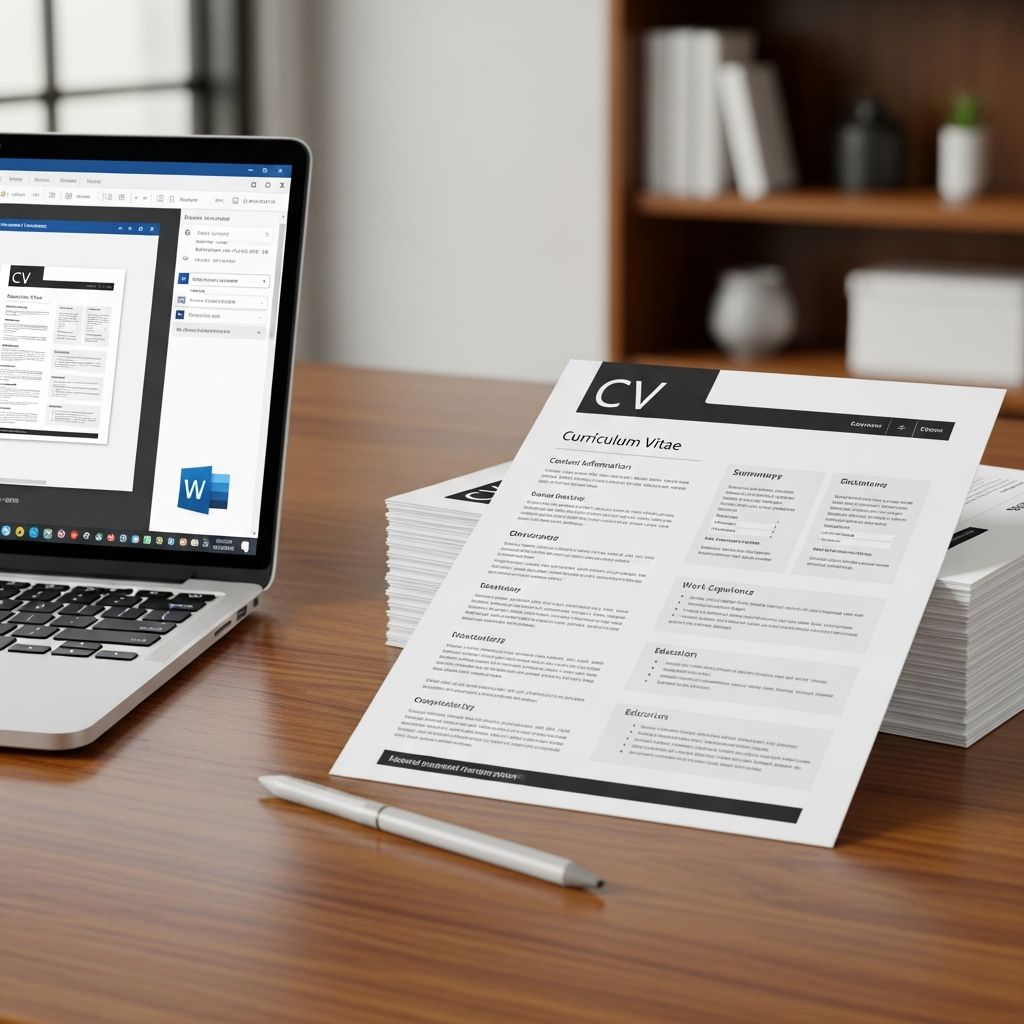
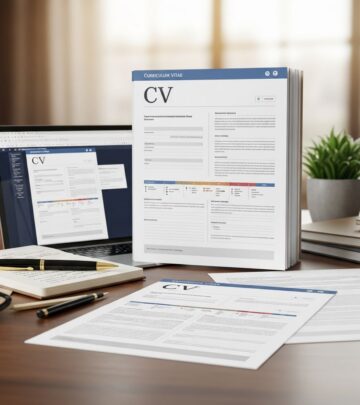
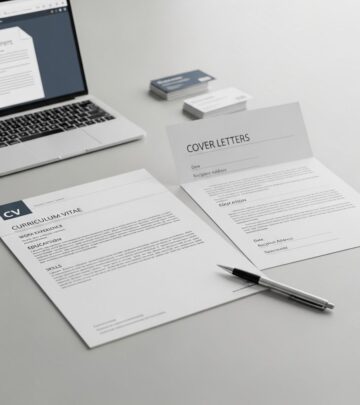
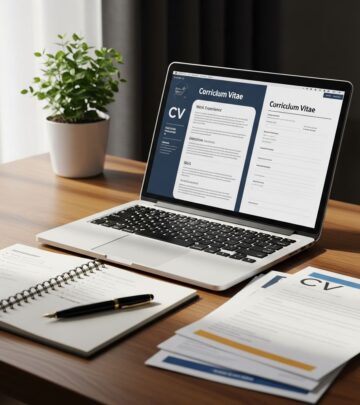
Creating a professional curriculum vitae (CV) or resume is one of the most critical steps in your job search journey. Your CV is often your first impression with potential employers, making it essential to present your qualifications, experience, and skills in a clear, organized, and visually appealing manner. Fortunately, you don’t need to start from scratch or invest in expensive resume-writing services. Microsoft Word offers a wide range of free CV templates that can help you create a polished, professional document in minutes.
Whether you’re a recent graduate entering the workforce, a career changer, or an experienced professional seeking new opportunities, having access to quality CV templates can significantly streamline your job application process. These templates are professionally designed, fully customizable, and formatted to work seamlessly with applicant tracking systems (ATS) that most major employers use to screen resumes.
Why Use Microsoft Word CV Templates?
Microsoft Word remains one of the most widely used and accessible tools for creating professional documents. The platform offers numerous advantages when it comes to CV creation:
- Accessibility: Microsoft Word is available on most computers and devices, making it easy to create, edit, and share your CV
- Familiarity: Most job seekers and recruiters are familiar with Word documents, ensuring compatibility across different systems
- Customization: Templates in Word are fully editable, allowing you to personalize every aspect of your CV to match your unique career profile
- Professional Design: Pre-designed templates eliminate the need for graphic design skills while maintaining a polished appearance
- Cost-Effective: Free templates mean you can create multiple versions without spending money
- Format Flexibility: Word documents can be easily exported to PDF or other formats as needed for different job applications
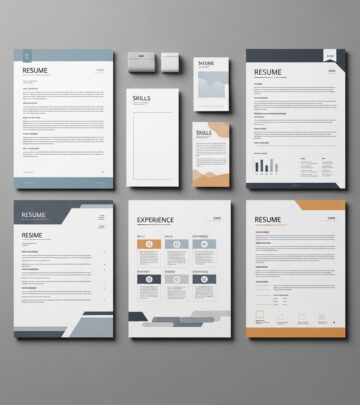
Types of CV Templates Available
Microsoft Word and various online platforms offer diverse CV template styles to suit different industries, career levels, and personal preferences. Understanding the different types can help you choose the most appropriate format for your situation.
Chronological CV Templates
Chronological CVs list your work experience in reverse order, starting with your most recent position. This format is particularly effective if you have a consistent work history and want to highlight career progression. Recruiters prefer this format because it clearly shows your employment timeline and career development. Chronological templates are ideal for traditional industries such as finance, healthcare, education, and government sectors.
Functional CV Templates
Functional CVs emphasize your skills and abilities rather than your work history. This format is particularly useful for career changers, individuals with employment gaps, or those entering the workforce for the first time. By focusing on relevant skills, functional templates help downplay work history gaps and highlight transferable competencies. However, it’s worth noting that some recruiters may be skeptical of functional formats, so consider using this only when it genuinely benefits your application.
Combination/Hybrid CV Templates
Hybrid or combination CVs merge the strengths of chronological and functional formats. They highlight both your skills and your work experience, providing a comprehensive view of your qualifications. This format is increasingly popular and is generally well-received by recruiters. It works well for most career stages and industries, making it a versatile choice for many job seekers.
Modern and Creative CV Templates
For creative industries such as graphic design, marketing, advertising, and technology, modern and creative CV templates can help you stand out. These templates incorporate color, graphics, unique layouts, and contemporary design elements that reflect the creative nature of your field. Modern templates often feature sleek designs with strategic use of color and visual elements to create visual interest while maintaining professionalism.
Simple and Minimalist CV Templates
Simple and minimalist templates feature clean designs with plenty of white space, straightforward typography, and a focus on readability. These templates are perfect for traditional industries like accounting, law, finance, and consulting, where a conservative, professional appearance is valued. The minimalist approach ensures that your content is the focus rather than decorative elements.
Executive and Professional CV Templates
Designed specifically for senior-level positions, executive templates emphasize leadership experience, strategic accomplishments, and professional achievements. These templates often feature premium designs and sophisticated layouts that convey authority and expertise. They’re particularly effective for C-suite positions, directors, and other senior management roles.
Industry-Specific Templates
Many platforms offer templates tailored to specific professions, including nursing, teaching, IT management, and customer service. These industry-specific templates often include sections and formatting that align with expectations within those fields, making your CV more relevant to potential employers in your sector.
Where to Find Free Microsoft Word CV Templates
Several reputable sources offer free CV templates compatible with Microsoft Word:
Microsoft Office Official Templates
Microsoft itself provides an extensive collection of free resume and CV templates directly through Word. To access these templates, open Microsoft Word, click on “File,” then “New,” and search for “resume” or “CV” in the template search bar. You’ll find numerous options ranging from basic to modern designs. Microsoft’s official templates ensure compatibility and regular updates.
Online Template Libraries
Dedicated resume template websites like Resume Sector, MyPerfectResume, Jobscan, Resume Genius, and Cool Free CV offer extensive collections of free Microsoft Word-compatible templates. These platforms often allow you to filter templates by industry, experience level, and design style, making it easier to find exactly what you need.
University Career Services
Many universities, including Harvard College, provide free resume templates and resources for their students and alumni. These academic institutions often create templates that meet professional standards and can be excellent resources even if you’re not currently affiliated with the university.
How to Use Microsoft Word CV Templates Effectively
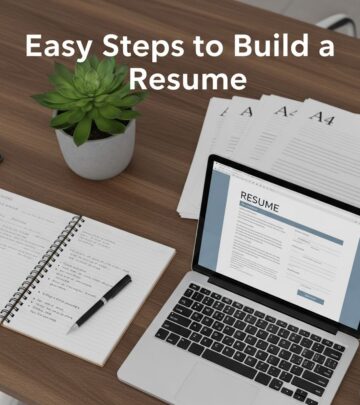
Step 1: Choose Your Template
Browse available templates and select one that matches your industry, experience level, and personal style. Consider whether a chronological, functional, or hybrid format best represents your career. Pay attention to design elements, color schemes, and layout to ensure the template aligns with expectations in your field.
Step 2: Download and Open
Download your chosen template to your computer and open it in Microsoft Word. Most templates are available in .docx format, which is compatible with current versions of Word. Some platforms also offer templates in other formats like PDF or Google Docs for added flexibility.
Step 3: Customize Your Information
Replace the placeholder text with your personal information, including your name, contact details, professional summary, work experience, education, skills, and any other relevant sections. Maintain consistent formatting and ensure all information is accurate and up-to-date.
Step 4: Tailor to the Job
Review the job posting and customize your CV to highlight the most relevant skills and experiences. Use keywords from the job description in your CV to improve your chances of passing through applicant tracking systems. This targeted approach significantly increases your likelihood of getting noticed by recruiters.
Step 5: Proofread and Format
Carefully review your CV for spelling and grammatical errors. Ensure consistent formatting, including font sizes, spacing, and styling. A professionally formatted CV without errors presents a strong first impression to potential employers.
Step 6: Save and Export
Save your CV in Word format (.docx) as your master file. You can also export it to PDF format, which preserves formatting across different systems and is often preferred by employers. Consider saving multiple versions of your CV, each tailored to specific job applications or industries.
Tips for Creating an Effective CV
Beyond choosing a template, several best practices can enhance your CV’s effectiveness:
Use Action Verbs
Start bullet points with strong action verbs such as “managed,” “developed,” “implemented,” “led,” or “achieved.” These verbs create a sense of accomplishment and impact.
Quantify Your Achievements
Whenever possible, include specific numbers and metrics that demonstrate the impact of your work. For example, “increased sales by 35%” is more compelling than “improved sales performance.”
Keep It Concise
Most CVs should be one to two pages long. Focus on the most relevant and recent information, eliminating outdated or irrelevant details. For academic or research positions, longer CVs may be appropriate.
Optimize for ATS
Use standard fonts, avoid tables and graphics that might confuse ATS software, and include relevant keywords from job descriptions. This optimization ensures your CV reaches human reviewers.
Maintain Consistency
Use consistent formatting throughout your CV, including font sizes, bullet point styles, date formats, and spacing. Consistency demonstrates attention to detail and professionalism.
Highlight Relevant Skills
Create a dedicated skills section featuring the most relevant competencies for your target role. Include both hard skills (technical abilities) and soft skills (communication, leadership, teamwork).
Common CV Mistakes to Avoid
When using templates and creating your CV, be mindful of these common pitfalls:
- Typos and grammatical errors that undermine your credibility
- Inconsistent formatting that appears unprofessional
- Excessive use of graphics or colors that distract from content
- Including personal information not relevant to the job application
- Using unprofessional email addresses or outdated contact information
- Providing false or exaggerated information about qualifications or experience
- Poor organization that makes it difficult for recruiters to find key information
- Using overly complex language or industry jargon that may not translate across fields
Frequently Asked Questions About CV Templates
Q: Can I use the same CV for every job application?
A: While you can use the same template, it’s advisable to tailor your CV for each position. Customize your professional summary, skills, and highlighted achievements to match the job description. This targeted approach significantly improves your chances of getting selected for an interview.
Q: Should I use a CV or a resume?
A: The terms are often used interchangeably in the United States, though resumes are typically one to two pages. Internationally, CVs may be longer and more comprehensive. For most job applications in the US, a one-page resume is standard. Check the job posting or company guidelines for specific requirements.
Q: How do I export a Word CV to PDF?
A: Open your CV in Microsoft Word, click “File,” select “Export,” and choose “Export as PDF.” This preserves your formatting and ensures the document appears the same on any device. PDF format is often preferred by employers as it maintains consistent formatting.
Q: Are free CV templates as good as paid templates?
A: Free templates from reputable sources are professionally designed and equally effective as paid options. The key is selecting a quality template from a trusted provider and customizing it well. Your content and presentation matter far more than whether you paid for the template.
Q: Can I modify a template’s design and layout?
A: Yes, Microsoft Word templates are fully customizable. You can change colors, fonts, layouts, and sections to create a personalized CV. However, maintain professional formatting and ensure changes enhance rather than detract from readability and professionalism.
Q: What sections should every CV include?
A: Essential sections include contact information, professional summary or objective, work experience, education, and skills. Depending on your background, you might also include certifications, awards, publications, volunteer work, or professional affiliations.
Q: How often should I update my CV?
A: Update your CV whenever you gain new experience, complete relevant training, or earn certifications. At minimum, review and refresh your CV quarterly or whenever you’re actively job searching. Keeping it current ensures you’re always ready to apply for opportunities.
Conclusion
Free Microsoft Word CV templates provide an accessible, professional, and cost-effective solution for job seekers at all career levels. By selecting the appropriate template style for your industry and customizing it effectively with your qualifications and achievements, you can create a compelling CV that captures recruiters’ attention. Whether you’re entering the job market for the first time, making a career transition, or seeking advancement, these templates serve as an excellent foundation for your job search success. Take advantage of the professional designs available, tailor them to your unique background, and present yourself confidently to potential employers.
References
- 50 Free Microsoft Word CV Templates — Good Things Australia. 2024. https://goodthingsaustralia.org/learn-resource/50-free-microsoft-word-cv-templates/
- Resume Sector: Free Resume Templates in Word — Resume Sector. 2024. https://resumesector.com
- Microsoft Word Resume Template & Example [Free Download] — MyPerfectResume. November 2024. https://www.myperfectresume.com/resume/templates/word
- Free Resume Templates for 2025 – Jobscan — Jobscan. 2024. https://www.jobscan.co/resume-templates
- Free Microsoft Word resume templates to download and customize — Microsoft. 2024. https://word.cloud.microsoft/create/en/resume-templates/
- CV Resume Templates Examples Docx Word Free Download — Cool Free CV. 2024. https://www.coolfreecv.com
- Free Resume Templates for 2025 (Download for Word & G Doc) — Resume Genius. 2024. https://resumegenius.com/resume-templates
- Harvard College Bullet Point Resume Template — Harvard College Career Services. 2024. https://careerservices.fas.harvard.edu/resources/bullet-point-resume-template/
Similar Articles








Read full bio of Sneha Tete