Facebook Messenger Payments: Send and Receive Money
Master peer-to-peer payments on Facebook Messenger with our complete guide to sending, receiving, and managing money transfers securely.
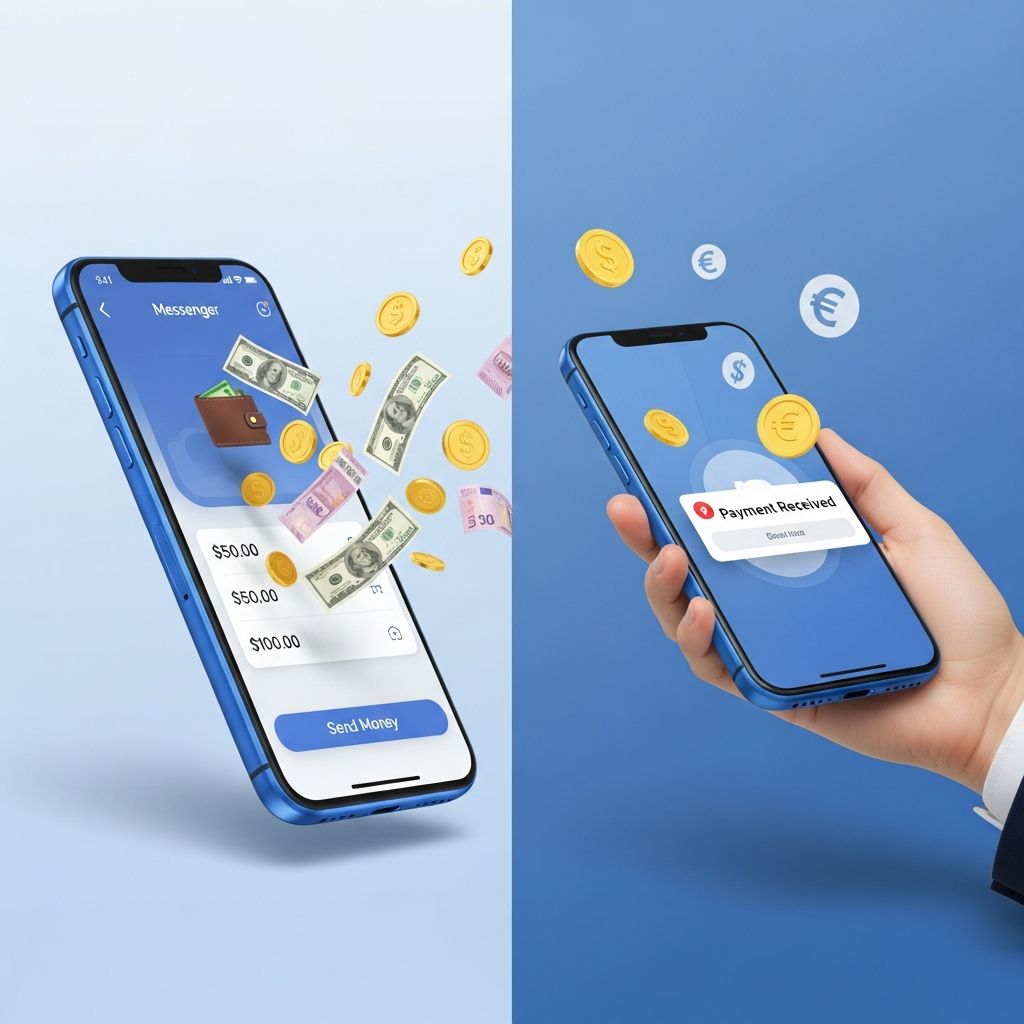
Facebook Messenger has evolved from a simple messaging app into a comprehensive platform for financial transactions. Whether you need to split a dinner bill, send money to friends or family, or make purchases on Facebook Marketplace, Facebook Messenger payments make it easy and convenient. This comprehensive guide will walk you through everything you need to know about using Facebook Messenger to send and receive money securely.
What Are Facebook Messenger Payments?
Facebook Messenger payments, now powered by Meta Pay, allow users to send and receive money directly through the Messenger app without needing to share banking details with recipients. This peer-to-peer payment service integrates seamlessly into your regular conversations, making financial transactions as simple as sending a message. Meta Pay is Meta’s unified payment system that works across Facebook, Instagram, Messenger, Meta Horizon, and Meta.com, providing a consistent and secure payment experience across multiple platforms.
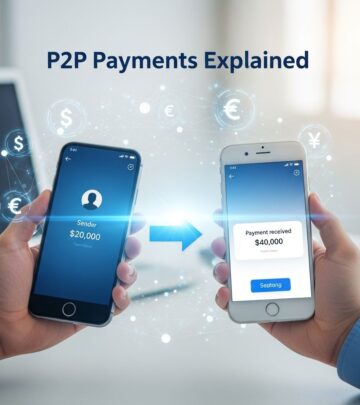
The beauty of this system lies in its simplicity and speed. Money transfers happen almost instantly, and recipients receive funds directly into their linked bank account or PayPal account without any additional steps required on their part. This makes it perfect for settling shared expenses, sending birthday gifts, or handling group payments without the friction of traditional payment methods.
Getting Started: Setting Up Meta Pay on Messenger
Prerequisites Before You Begin
Before you can start sending and receiving money through Messenger, you’ll need:
– A valid Facebook or Messenger account- A smartphone with the latest version of the Messenger app installed- A linked payment method (credit card, debit card, or PayPal account)- Access to your account settings
Step-by-Step Setup Guide
Setting up Meta Pay on Messenger is straightforward and takes just a few minutes:
Step 1: Access Your Settings
Open the Messenger app and locate the menu button at the bottom right of your screen. Tap it to access the main menu options.
Step 2: Navigate to Account Center
From the menu, select Settings and then choose Account Center. This centralized hub manages all your Meta account information across different platforms.
Step 3: Access Meta Pay
Within Account Center, look for the Meta Pay option. This is where you’ll manage all your payment settings and methods for Messenger and other Meta platforms.
Step 4: Add Your Payment Method
Under the payment methods section, select “Add Credit or Debit Card.” Alternatively, you can link your PayPal account if available in your region. Some areas may also offer other payment options like Venmo.
Step 5: Enter Card Details
Input your card information carefully, including the card number, expiration date, and CVV security code. Meta uses encryption to protect your sensitive financial information.
Step 6: Create Security Settings
Set up a PIN or enable biometric authentication (fingerprint or facial recognition) for additional security. This ensures that only you can authorize payments from your account.
Step 7: Confirm and Save
Review your information and tap save to finalize your setup. Your payment method is now linked to your Messenger account.
Supported Payment Methods
Facebook Messenger accepts multiple payment methods to provide flexibility for different users:
–
Credit Cards
: Visa, Mastercard, and American Express cards are widely accepted-Debit Cards
: Direct bank debit cards provide instant access to your funds-PayPal
: Your existing PayPal account can be linked for seamless transactions-Regional Options
: Depending on your location, additional payment methods like Venmo may be availableIf you’ve previously made purchases on Facebook or Instagram, your existing payment information may already be on file. In this case, you may not need to re-enter your details to get started with Messenger payments. Meta Pay synchronization allows your payment information to transfer across platforms, creating a unified experience.
How to Send Money Through Messenger
The Complete Process
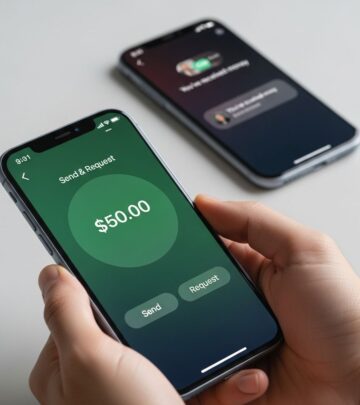
Sending money to friends or acquaintances through Messenger is remarkably simple and can be accomplished in just a few taps:
Step 1: Start a Conversation
Open the Messenger app and navigate to an existing chat with the person you want to send money to, or start a new conversation with them. There’s no need to exchange banking details or create anything new—just open the chat.
Step 2: Access the Payment Option
At the bottom of the chat window, you’ll see a row of icons. Look for the dollar sign icon ($) and tap it to initiate a payment.
Step 3: Enter the Amount
A payment dialog will appear where you can enter the exact amount you wish to send. Double-check the amount to ensure accuracy before proceeding.
Step 4: Confirm Your Transaction
Review the payment details including the recipient’s name and the amount. If everything looks correct, tap confirm to proceed.
Step 5: Authenticate the Payment
Enter your PIN or use your phone’s biometric authentication (fingerprint or face ID) to authorize the payment. This security step protects your account from unauthorized transactions.
Step 6: Transaction Complete
Once authenticated, your money will be sent instantly. You’ll receive a confirmation message in the chat, and the recipient will be notified of the incoming payment.
Transaction Speed and Confirmation
One of the major advantages of Facebook Messenger payments is the near-instantaneous transfer of funds. When you click confirm, the money begins moving from your linked account immediately. If you have online banking enabled, you can see the transaction reflected in your account within seconds. Recipients similarly see the payment deposited into their linked account almost instantly, eliminating the waiting period associated with traditional money transfer services.
Receiving Money on Messenger
Passive Reception Process
One of the most convenient aspects of Messenger payments is that you don’t need to do anything to receive money. When someone sends you a payment:
– You’ll receive a notification similar to a regular message- The notification displays the sender’s name and the amount being received- The money is automatically deposited into your linked bank or PayPal account- No confirmation or acceptance is required on your part
Setting Up to Receive Payments
If you haven’t yet set up Meta Pay on your account, receiving a payment will prompt you to add your payment method. You’ll see a notification asking you to link a card or PayPal account. Once you complete this setup, the incoming payment will be immediately deposited into your newly linked account.
This streamlined process means you can start receiving money on Messenger even if you haven’t proactively set up your account, making it truly frictionless for recipients.
Managing Your Payment Methods
Adding Multiple Payment Methods
Facebook Messenger allows you to link multiple payment methods to your account for flexibility. You can add several credit cards, debit cards, or even maintain both PayPal and direct card options. This is particularly useful if you want to use different cards for different purposes or if you have backup options.
Editing Payment Information
You can update your payment method details at any time through the Account Center. Navigate to Meta Pay settings and select the payment method you wish to modify. Common updates include expiration dates for credit cards or billing address changes.
Removing Payment Methods
If you no longer wish to use a particular payment method, you can remove it from your account. Simply access your payment methods in Meta Pay settings and select the delete or remove option for the card or account you want to disconnect. You must maintain at least one active payment method to continue using Messenger payments.
Viewing Payment History
Meta Pay provides a complete record of your transactions. You can access your payment activity and order history through the Orders and Payments hub available in Facebook or Instagram settings. This allows you to review past transactions, verify amounts, and track your spending or income through Messenger.
Understanding Fees and Costs
Meta’s Fee Structure
Facebook does not charge any fees for using Messenger to send or receive money between individuals. This makes it an attractive option compared to other peer-to-peer payment services that may charge transaction fees. The absence of fees makes settling bills, splitting expenses, or sending gifts economical.
Potential Third-Party Fees
While Meta itself doesn’t charge fees, your payment provider (credit card issuer or PayPal) may impose charges in certain circumstances. Understanding these potential fees helps you make informed decisions:
–
Foreign Transaction Fees
: If you send money in a currency different from your card’s default currency, your card provider may charge a foreign transaction fee-Currency Exchange Markup
: When using PayPal for international transactions, PayPal may apply a currency exchange markup to the conversion rate-Card Provider Fees
: Some credit card companies charge fees for money transfers or cash-like transactions-PayPal Fees
: If you use PayPal as your linked payment method, PayPal may assess fees for certain transaction typesTo minimize fees, check with your card provider about their specific policies regarding Messenger payments, and consider using domestic transactions when possible.
Security and Privacy Considerations
Protecting Your Account
Meta Pay implements multiple security layers to protect your financial information:
–
Encryption
: Your payment data is encrypted to prevent unauthorized access-PIN Protection
: Your PIN serves as a second layer of security for authorizing payments-Biometric Authentication
: Fingerprint and facial recognition add additional protection beyond traditional passwords-Account Verification
: Meta verifies account information to prevent fraudSafe Transaction Practices
To maintain security when using Messenger payments:
– Never share your PIN or biometric authentication method with anyone- Only send money to people you know and trust- Verify recipient identities before sending payments- Monitor your account regularly for unauthorized transactions- Use strong passwords for your Facebook account- Enable two-factor authentication on your Facebook account for additional security
Use Cases and Practical Applications
Common Payment Scenarios
Messenger payments excel in numerous everyday situations:
–
Splitting Restaurant Bills
: Calculate each person’s share and send payment requests directly in the conversation where you’re already discussing the meal-Group Expenses
: When one person pays for group activities, collect money from others instantly through Messenger-Rent and Utilities
: Roommates can quickly settle shared housing expenses-Birthday and Holiday Gifts
: Send money to friends and family for special occasions-Small Business Payments
: Freelancers and service providers can receive payments from clients-Marketplace Transactions
: Buy and sell items on Facebook Marketplace with integrated paymentsBusiness Applications
Beyond personal use, Messenger payments serve business purposes. Small business owners can receive payments from customers directly through the platform. The instant settlement and lack of fees make it economical for various business transactions, from consulting fees to product sales.
Comparing Facebook Pay to Other Payment Services
| Feature | Facebook Messenger | PayPal | Venmo |
|---|---|---|---|
| Transaction Fees | Free | Free for friends, fees for businesses | Free between users |
| Transfer Speed | Instant | 1-3 days | 1-3 days |
| Platform Integration | Facebook, Instagram, Messenger | Standalone service | Standalone service |
| Accessibility | Existing Messenger users | Requires separate account | Requires separate account |
| International Support | Limited by region | Widely available | US only |
Troubleshooting Common Issues
Payment Method Not Accepted
If your payment method is declined, ensure that:
– Your card details are entered correctly- Your card hasn’t expired- You have sufficient funds available- Your bank hasn’t blocked the transaction- Contact your card issuer if problems persist
Payment Not Received
If a recipient claims they didn’t receive a payment:
– Check your transaction history to confirm the payment was sent- Verify the recipient’s account is properly set up- Wait a few minutes as delays occasionally occur- Contact Meta support if the issue persists
Unable to Add Payment Method
If you’re having trouble linking a payment method:
– Update your Messenger app to the latest version- Clear your app cache and try again- Use a different payment method if available- Verify your account information is current
Frequently Asked Questions
Q: Is Facebook Messenger payment available in all countries?
A: No, Messenger payments are currently available in select countries. Meta is continuously expanding availability, but the service may not be available in all regions. Check your account settings to see if payments are available in your location.
Q: Can I use Messenger payments on Facebook Marketplace?
A: Yes, you can use Meta Pay to make purchases on Facebook Marketplace. The payment process is integrated directly into the marketplace transaction flow.
Q: What happens if I send money to the wrong person?
A: If you accidentally send money to the wrong recipient, contact Meta support immediately. While reversing transactions can be difficult, Meta may be able to help depending on the circumstances.
Q: Is there a limit to how much money I can send?
A: Meta may impose transaction limits, though specific limits vary by account and region. Check your account settings for your personal sending limits.
Q: Can I use Messenger payments on Instagram?
A: Yes, you can use Meta Pay on Instagram for purchases and some transactions. Payment functionality varies between platforms but is integrated across Meta’s ecosystem.
Q: Do I need to be friends with someone to send them money?
A: No, you don’t need to be connected on Facebook, but you do need to be able to message them on Messenger. You can send money to any contact you can reach through the app.
Q: How long does it take to receive money sent to me?
A: Money typically arrives instantly in your linked bank account or PayPal account. In rare cases, there may be slight delays of a few minutes.
Q: What should I do if I see an unauthorized transaction?
A: Report the unauthorized transaction immediately to Meta support and your financial institution. Both can investigate and potentially reverse the charge.
References
- How to Add Payment Method on Messenger — How To Net. May 29, 2025. https://www.youtube.com/watch?v=Utd8x5AJLFk
- What is Facebook Pay and how does it work? — Wise. https://wise.com/us/blog/how-does-facebook-pay-work
- Get started with Meta Pay — Meta Help Center. https://www.meta.com/help/meta-pay/559736935834154/
- The Complete Guide to Sending Money Securely Through Facebook Messenger — DHGate Smart. https://smart.dhgate.com/the-complete-guide-to-sending-money-securely-through-facebook-messenger/
Similar Articles





Read full bio of Sneha Tete