Apple Cash: How to Use It to Send and Receive Money
Complete guide to setting up Apple Cash, sending money, and managing your digital wallet.
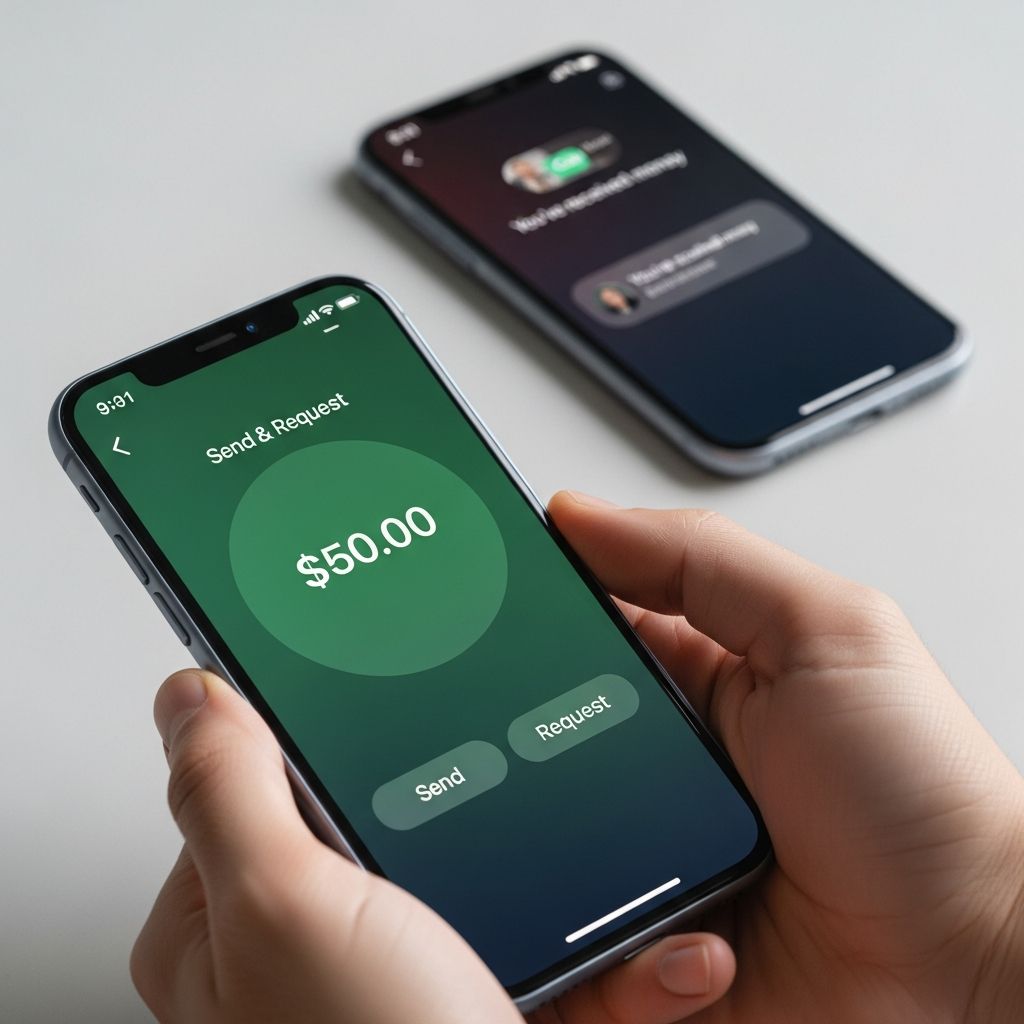
Apple Cash is a versatile digital payment service that goes far beyond simple peer-to-peer money transfers. Whether you need to split a bill with friends, make online purchases, shop in stores, or handle in-app transactions, Apple Cash provides a convenient and secure way to manage your money directly from your Apple device. This comprehensive guide will walk you through everything you need to know about setting up, using, and maximizing Apple Cash.
What is Apple Cash?
Apple Cash is a digital wallet feature integrated into Apple’s ecosystem that allows users to send and receive money, make purchases, and manage their finances conveniently. Unlike traditional payment methods, Apple Cash operates entirely through your Apple device, making transactions faster and more secure. The service combines peer-to-peer payment functionality with the ability to use funds for everyday purchases both online and in physical stores.
Apple Cash serves as a bridge between your bank account and your digital spending needs. It eliminates the friction of traditional payment methods while providing robust security features that protect your financial information. The service is designed to work seamlessly with Apple Pay, allowing you to leverage your existing Apple ecosystem for financial transactions.
Getting Started: Setting Up Apple Cash
Requirements for Setup
Before you can begin using Apple Cash, you’ll need to meet three essential requirements. First, you must have a compatible Apple device, such as an iPhone, iPad, or Apple Watch. Second, your Apple ID must have two-factor authentication enabled for security purposes. This can be easily configured in your Settings app. Third, you’ll need an eligible debit card to load funds onto your Apple Cash account. Most major debit cards from U.S. banks are supported.
Step-by-Step Setup Process
Setting up Apple Cash is straightforward and takes only a few minutes. Begin by opening the Settings app on your compatible Apple device and navigate to the Wallet and Apple Pay section. Look for the Apple Cash card icon and select it. Tap on the option to set up Apple Cash and follow the on-screen instructions carefully.
During the setup process, you’ll be prompted to review and agree to the terms and conditions governing Apple Cash usage. Read through these carefully to understand your rights and responsibilities. After accepting the terms, your device will automatically configure Apple Cash and prepare your account for use. Once setup is complete, you’ll see your Apple Cash card appear in your Wallet app, ready for funding and transactions.
Adding Money to Your Apple Cash Account
Linking Your Debit Card
To add money to Apple Cash, you’ll first need to link a debit card to your digital Wallet. Return to the Settings app and access the Wallet and Apple Pay section where you initially set up Apple Cash. Select the option to add a debit card and follow the prompts to enter your card information. Your debit card will be securely stored in your device’s Wallet, protected by biometric authentication.
Funding Your Apple Cash Card
Once your debit card is linked, funding your Apple Cash account is simple. Open the Wallet app on your device and tap on your Apple Cash card. Look for the More button, typically represented by three dots or lines, which will open your account settings. From this menu, you can view your current Apple Cash balance and access the “Add Money” option.
When you select Add Money, you’ll be prompted to enter the amount you wish to transfer. The minimum amount is $10, ensuring that even small transactions are supported. Confirm which linked debit card you want to use for the funding, and the money will be instantly added to your Apple Cash balance. The funds are immediately available for spending, sending, or holding in your digital wallet.
Sending and Receiving Money
How to Send Money with Apple Cash
Sending money to friends and family through Apple Cash is one of the service’s most popular features. To send money, open the Wallet app and tap on your Apple Cash card. Select the option to send money or initiate a payment. You can then choose from your contacts or manually enter the recipient’s phone number or email address. Enter the amount you wish to send and add an optional note explaining the purpose of the payment.
Review the transaction details to ensure everything is correct before confirming. You can use Face ID, Touch ID, or your passcode to authorize the payment. The recipient will receive a notification that money has been sent to them. They can then accept the funds into their own Apple Cash account or bank account, depending on their preferences and setup.
Receiving Money from Others
Receiving money through Apple Cash is entirely passive on your part. When someone sends you Apple Cash, you’ll receive a notification on your device. The funds will be held pending your acceptance. You can either accept the money into your Apple Cash account or decline it if needed. Once accepted, the funds are available immediately for spending, transferring, or holding.
Unlike sending money, receiving Apple Cash requires no setup or configuration. As long as your Apple Cash account is active and your device has notifications enabled, you can receive payments from anyone with your contact information. There are no fees associated with receiving Apple Cash funds.
Making Purchases with Apple Cash
In-Store Purchases
Apple Cash can be used for in-store purchases at any retailer that accepts Apple Pay. Simply look for the Apple Pay symbol at the checkout counter or ask if they accept contactless payments. Hold your device near the payment terminal and authenticate using Face ID, Touch ID, or your passcode. Your Apple Cash balance will be debited for the purchase amount.
Online and In-App Shopping
Online shopping with Apple Cash is equally convenient. When checking out on websites or within apps that support Apple Pay, select Apple Pay as your payment method. Your device will prompt you to authenticate the transaction, and your Apple Cash funds will be used to complete the purchase. This method is faster and more secure than entering credit card information manually.
Transferring Funds to Your Bank Account
Standard Transfer Options
If you need to move your Apple Cash balance back to your bank account, Apple provides multiple transfer options. Open the Wallet app and select your Apple Cash card. Tap the More button and choose the transfer option. Enter the amount you wish to transfer and select your preferred transfer method.
For transfers that aren’t time-sensitive, select the standard transfer option, which typically completes within one to three business days and carries no fees. This is the most cost-effective option for moving larger amounts or when you can wait a few days for the funds to arrive.
Instant Transfer Options
If you need immediate access to your funds, Apple Cash offers an instant transfer option. This expedited service transfers your money within 30 minutes, though it does carry a 1.5 percent fee. Instant transfers can only be made to eligible debit cards, not to standard bank accounts. This option is ideal when you need quick access to your funds for urgent expenses.
Setting Up Bank Account Connections
To transfer funds to a bank account, you’ll need to set up your banking information within the Apple Cash interface. The system will guide you through adding your bank account details securely. Ensure that you have your routing number and account number available when setting up this connection. Your bank account information is encrypted and protected by Apple’s security protocols.
Security and Privacy Features
Apple Cash incorporates multiple layers of security to protect your financial information. Two-factor authentication ensures that only you can access your account. Biometric authentication through Face ID or Touch ID prevents unauthorized transactions on your device. All transactions are encrypted and transmitted securely to Apple’s servers.
Your Apple Cash card operates similarly to a traditional prepaid card but with enhanced security features. If your device is lost or stolen, you can remotely disable Apple Cash through Find My iPhone, preventing unauthorized access to your funds. Apple does not store complete card numbers on your device; instead, cryptographic tokens are used to authorize transactions.
Apple Cash and Apple Card Integration
Apple Cash works seamlessly with the Apple Card credit card. When you receive Daily Cash rewards from Apple Card purchases, you can automatically deposit these rewards into your Apple Cash account. This integration creates a cohesive financial ecosystem where rewards become immediately spendable funds.
Additionally, if you have an Apple Savings account linked to your Apple Card, you can have Daily Cash automatically transferred there to earn interest. This gives you flexibility in how you manage and grow your rewards.
Frequently Asked Questions
Q: What devices are compatible with Apple Cash?
A: Apple Cash works on iPhone 6s and later, iPad (5th generation and later), and Apple Watch Series 1 and later. Your device must be updated to the latest version of iOS, iPadOS, or watchOS to access Apple Cash features.
Q: Are there any fees associated with Apple Cash?
A: There are no fees for sending or receiving Apple Cash, or for adding funds from your debit card. However, instant transfers to a debit card incur a 1.5 percent fee. Standard transfers to bank accounts are completely free.
Q: Can I use Apple Cash internationally?
A: Apple Cash is currently available only in the United States. International transfers and usage are not supported at this time.
Q: What is the maximum amount I can send or receive?
A: Daily limits vary based on your account history and verification status. Generally, you can send up to $20,000 per day, though new accounts may have lower limits initially.
Q: How long do peer-to-peer transfers take?
A: Transfers between Apple Cash accounts are typically instantaneous. However, when funds are transferred to external bank accounts, standard transfers take one to three business days, while instant transfers complete within 30 minutes.
Q: Can I use Apple Cash without a bank account?
A: You need a debit card to fund your Apple Cash account initially. However, once funded, you can send and receive money without a linked bank account. You can only transfer back to a debit card or bank account you’ve set up.
Q: Is Apple Cash the same as Apple Pay?
A: No, they are related but different services. Apple Pay is a contactless payment method that can use various payment sources, while Apple Cash is a specific digital wallet account that holds funds for sending, receiving, and spending.
Q: What happens if I lose my device?
A: Your funds remain secure in your Apple Cash account. Use Find My iPhone to remotely disable Apple Cash on your lost device, and you can access your account on another device using your Apple ID.
Best Practices for Using Apple Cash
To maximize the benefits of Apple Cash while maintaining security, follow these best practices. Always ensure your Apple ID password is strong and unique. Enable two-factor authentication and keep your device software updated with the latest security patches. Review your transaction history regularly to monitor for any unauthorized activity.
When sending large amounts, double-check the recipient’s contact information to ensure the money goes to the correct person. Consider using standard transfers instead of instant transfers when time is not a factor, as they’re free. Use Apple Cash primarily for money that you’re comfortable spending quickly, treating it more like a checking account than a savings tool.
Conclusion
Apple Cash represents a modern approach to personal finance management, combining peer-to-peer payment capabilities with everyday spending functionality. By following this guide, you can confidently set up your Apple Cash account, add funds, send and receive money, and make purchases with ease. The service’s integration with Apple’s security features and broader ecosystem makes it an excellent choice for iPhone users looking for a streamlined financial experience. Whether you’re splitting bills with friends or managing your daily expenses, Apple Cash provides the tools you need for convenient and secure transactions.
References
- Apple Cash: How To Use It To Send And Receive Money — Bankrate. 2025. https://www.bankrate.com/banking/apple-cash-how-to-use-send-money/
- Use Apple Cash on iPhone — Apple Support. 2025. https://support.apple.com/guide/iphone/use-apple-cash-iph385cf0980/ios
- Your Guide To Apple Card’s Cash Back Program — Bankrate. 2025. https://www.bankrate.com/credit-cards/reviews/guide-to-apple-card-cash-back/
- A Beginner’s Guide To Digital Wallets — Bankrate. 2025. https://www.bankrate.com/banking/what-is-a-digital-wallet/
- How To Make Payments With Your Phone — Bankrate. 2025. https://www.bankrate.com/credit-cards/advice/guide-to-mobile-wallet-how-to-make-payments-with-phone/
Similar Articles






Read full bio of Sneha Tete